> ## Documentation Index
> Fetch the complete documentation index at: https://agents.nanonets.com/docs/llms.txt
> Use this file to discover all available pages before exploring further.
# Agent version control
> Make changes to your agent, preview versions, and go back when needed.
Agent version control helps you edit an agent safely.
You can keep improving the agent in a draft, publish a saved version when you are ready, and choose which version should run live tasks.
## Draft changes are not live
The API and automated triggers always run the **active published version**, never your draft. Publish a version to test an agent through the API or triggers. Manual UI runs can test the draft directly.
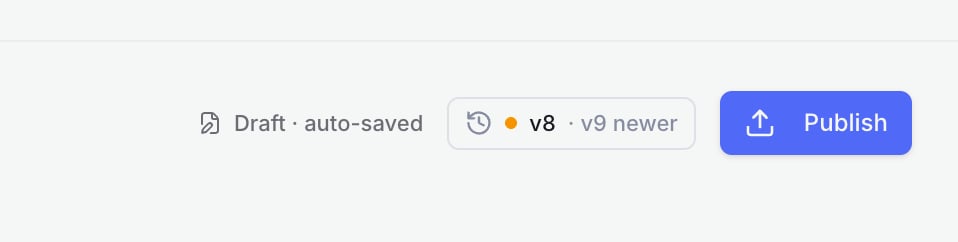 ## How versions work
Each agent has three important parts:
| Item | What it means |
| ----------------- | -------------------------------------------------------------------------------------- |
| Draft | The editable working copy. Changes in the editor are auto-saved here. |
| Published version | A saved version of the draft. Published versions are numbered, such as v1, v2, and v3. |
| Active version | The published version that runs live when the agent is set to **Live in production**. |
## Draft testing and Live in production
The rule is simple: **the API and triggers always run the active published version**, and **manual UI runs let you test the draft**. The **Live in production** toggle (in the Version control panel) only changes the default the manual composer pre-selects.
| Agent state | Manual UI runs | API and triggers |
| -------------------------------- | ----------------------------------------------------- | ---------------------------------- |
| Building, nothing published yet | Working draft | Rejected - publish a version first |
| Building, a version is published | Working draft (draft is the default) | Active version |
| Live in production | Active version (you can still pick the draft to test) | Active version |
Most people test by running tasks manually in the UI, which uses the draft - no publish needed. When you want the agent to run through the API or a trigger (email, schedule, SharePoint), publish a version; those paths always run the active published version.
Turn **Live in production** on for agents processing real customer data. It flips the manual composer to default to the active version (so a spot-check sees production behaviour), while you can still pick the draft to test.
## Changes that are saved in a version
Most agent setup changes are auto-saved to the draft. When one of these areas is different from the active version, the editor shows a draft status and enables **Publish**.
| Area | Examples |
| ------------------------- | ------------------------------------------------------------------------------------------------------------------------------------------------------------------ |
| Role and Behaviour | Editing the agent's role, tone, or global process instructions. |
| Instructions and workflow | Editing steps, phases, states, milestones, or summary instructions. |
| Tools | Enabling or disabling tools, changing configured tools, or changing tool settings. Tool settings are saved in the version, but integration secrets are not copied. |
| Rules | Adding, editing, approving, or removing rules used by the agent. |
| Skills | Enabling or disabling skills for the agent. The shared skill catalog is not duplicated. |
| Reference documents | Adding or removing reference documents used by the agent. The document attachment is saved in the version; the underlying file storage is not duplicated. |
| Run triggers | Adding, removing, enabling, or disabling triggers such as email or schedules. |
| Agent settings | Changing settings stored on the agent, such as model settings or document sync settings. |
| Delegation settings | Changing whether the agent can delegate work, receive delegated work, or how it is described to other agents. |
## Changes that are not saved in a version
These changes are saved outside the agent draft. They do not enable **Publish** unless you also change one of the areas listed above.
| Area | How it behaves |
| ----------------------------- | -------------------------------------------------------------------------------------------------------------------------------------------------------------------------------------------------------------------- |
| CSV files | CSV attachments and their indexed rows are shared across the agent group. Adding, removing, renaming, or changing a CSV does not create a version change, and switching versions does not roll the CSV back. |
| Data fields | Adding, editing, deleting, or reordering data fields does not currently make the draft publishable by itself. Data fields are still saved with a published version when you publish because of another draft change. |
| Tests | Test suites, test cases, test runs, and test results are managed separately from agent versions. They can run against versions, but editing tests does not create a draft change. |
| Analytics | Analytics dashboards, questions, data sources, reports, and historical results are managed outside agent versions. Editing them does not create a draft change. |
| Task history | Existing tasks, task results, task feed entries, usage, and logs are historical records. They do not change the draft. |
| Connected account credentials | Reconnecting or refreshing an integration account does not change the draft, and secrets are not copied into versions. Changing which integration a configured tool uses can count as a tool-setting change. |
Legacy analytics settings are an edge case. If a legacy analytics change also enables or disables an agent tool, that tool change can make the draft publishable. Analytics dashboards, questions, and results still remain outside version control.
For a brand-new agent, default tools, default settings, and the automatically created email trigger do not count as user changes by themselves. Publish becomes available after you add your own instructions, reference documents, tools, rules, or other meaningful edits.
## Publish a version
Publish when the draft is ready to become a saved version.
Update the agent's instructions, tools, rules, files, triggers, or settings.
The **Publish** button appears when the draft has changes worth saving.
Add a short name, such as **Tightened refund policy** or **Added vendor lookup**.
Open **Review changes** to compare the draft with the version it is based on.
Choose **Publish vN** to create the next numbered version.
## How versions work
Each agent has three important parts:
| Item | What it means |
| ----------------- | -------------------------------------------------------------------------------------- |
| Draft | The editable working copy. Changes in the editor are auto-saved here. |
| Published version | A saved version of the draft. Published versions are numbered, such as v1, v2, and v3. |
| Active version | The published version that runs live when the agent is set to **Live in production**. |
## Draft testing and Live in production
The rule is simple: **the API and triggers always run the active published version**, and **manual UI runs let you test the draft**. The **Live in production** toggle (in the Version control panel) only changes the default the manual composer pre-selects.
| Agent state | Manual UI runs | API and triggers |
| -------------------------------- | ----------------------------------------------------- | ---------------------------------- |
| Building, nothing published yet | Working draft | Rejected - publish a version first |
| Building, a version is published | Working draft (draft is the default) | Active version |
| Live in production | Active version (you can still pick the draft to test) | Active version |
Most people test by running tasks manually in the UI, which uses the draft - no publish needed. When you want the agent to run through the API or a trigger (email, schedule, SharePoint), publish a version; those paths always run the active published version.
Turn **Live in production** on for agents processing real customer data. It flips the manual composer to default to the active version (so a spot-check sees production behaviour), while you can still pick the draft to test.
## Changes that are saved in a version
Most agent setup changes are auto-saved to the draft. When one of these areas is different from the active version, the editor shows a draft status and enables **Publish**.
| Area | Examples |
| ------------------------- | ------------------------------------------------------------------------------------------------------------------------------------------------------------------ |
| Role and Behaviour | Editing the agent's role, tone, or global process instructions. |
| Instructions and workflow | Editing steps, phases, states, milestones, or summary instructions. |
| Tools | Enabling or disabling tools, changing configured tools, or changing tool settings. Tool settings are saved in the version, but integration secrets are not copied. |
| Rules | Adding, editing, approving, or removing rules used by the agent. |
| Skills | Enabling or disabling skills for the agent. The shared skill catalog is not duplicated. |
| Reference documents | Adding or removing reference documents used by the agent. The document attachment is saved in the version; the underlying file storage is not duplicated. |
| Run triggers | Adding, removing, enabling, or disabling triggers such as email or schedules. |
| Agent settings | Changing settings stored on the agent, such as model settings or document sync settings. |
| Delegation settings | Changing whether the agent can delegate work, receive delegated work, or how it is described to other agents. |
## Changes that are not saved in a version
These changes are saved outside the agent draft. They do not enable **Publish** unless you also change one of the areas listed above.
| Area | How it behaves |
| ----------------------------- | -------------------------------------------------------------------------------------------------------------------------------------------------------------------------------------------------------------------- |
| CSV files | CSV attachments and their indexed rows are shared across the agent group. Adding, removing, renaming, or changing a CSV does not create a version change, and switching versions does not roll the CSV back. |
| Data fields | Adding, editing, deleting, or reordering data fields does not currently make the draft publishable by itself. Data fields are still saved with a published version when you publish because of another draft change. |
| Tests | Test suites, test cases, test runs, and test results are managed separately from agent versions. They can run against versions, but editing tests does not create a draft change. |
| Analytics | Analytics dashboards, questions, data sources, reports, and historical results are managed outside agent versions. Editing them does not create a draft change. |
| Task history | Existing tasks, task results, task feed entries, usage, and logs are historical records. They do not change the draft. |
| Connected account credentials | Reconnecting or refreshing an integration account does not change the draft, and secrets are not copied into versions. Changing which integration a configured tool uses can count as a tool-setting change. |
Legacy analytics settings are an edge case. If a legacy analytics change also enables or disables an agent tool, that tool change can make the draft publishable. Analytics dashboards, questions, and results still remain outside version control.
For a brand-new agent, default tools, default settings, and the automatically created email trigger do not count as user changes by themselves. Publish becomes available after you add your own instructions, reference documents, tools, rules, or other meaningful edits.
## Publish a version
Publish when the draft is ready to become a saved version.
Update the agent's instructions, tools, rules, files, triggers, or settings.
The **Publish** button appears when the draft has changes worth saving.
Add a short name, such as **Tightened refund policy** or **Added vendor lookup**.
Open **Review changes** to compare the draft with the version it is based on.
Choose **Publish vN** to create the next numbered version.
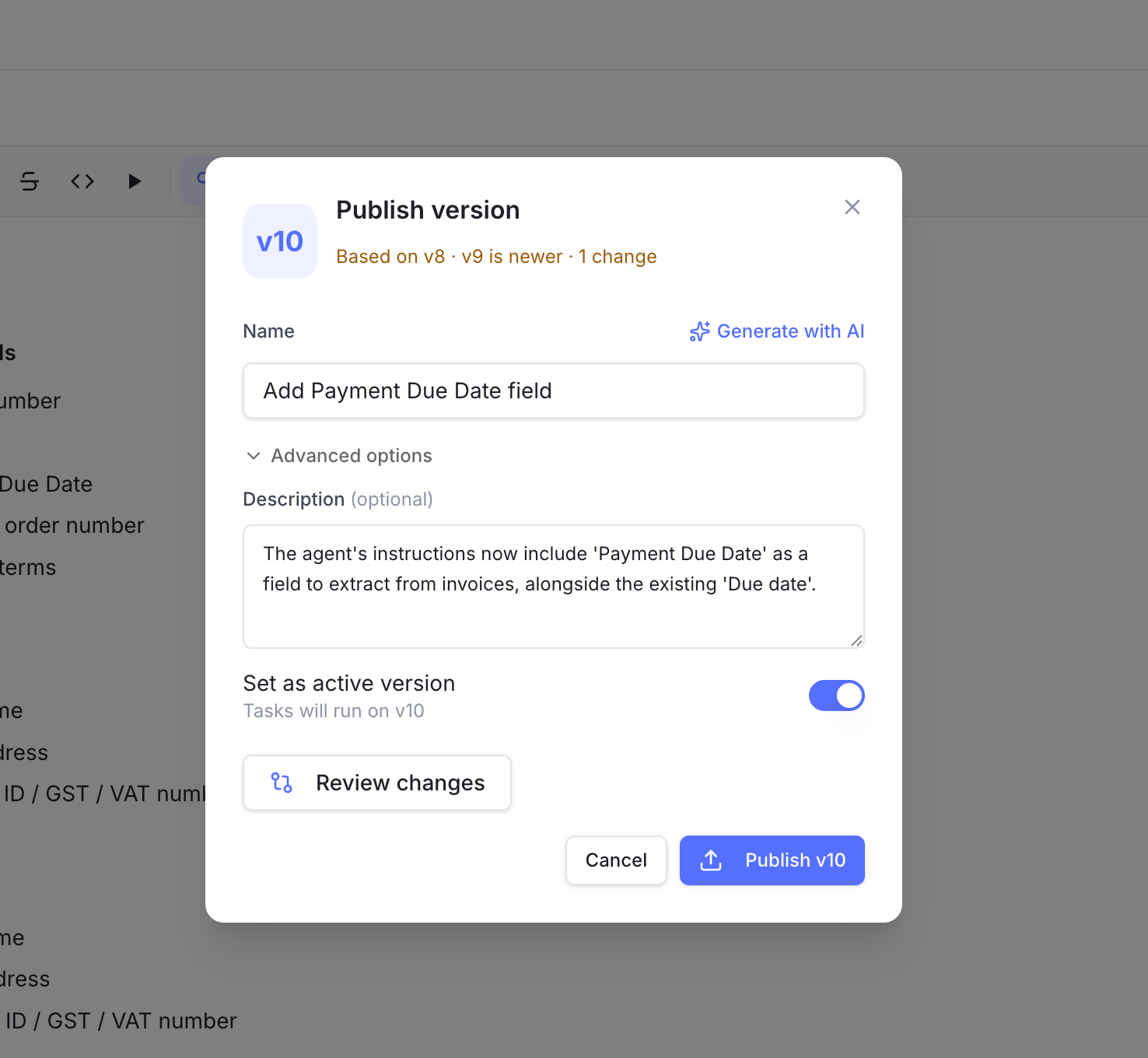 The first published version becomes active automatically. For later versions, you can make the new version active immediately or keep the current active version live.
## Active versions
The active version is the version tasks run on by default.
Use this workflow to change an agent safely:
1. Edit the draft.
2. Review the draft changes.
3. Publish a new version.
4. Make it active when you want live tasks to use it.
If you publish a version but do not make it active, the older active version keeps running live tasks.
Use this when you want to save a version for review, testing, or future rollback without changing production behavior yet.
## View version history
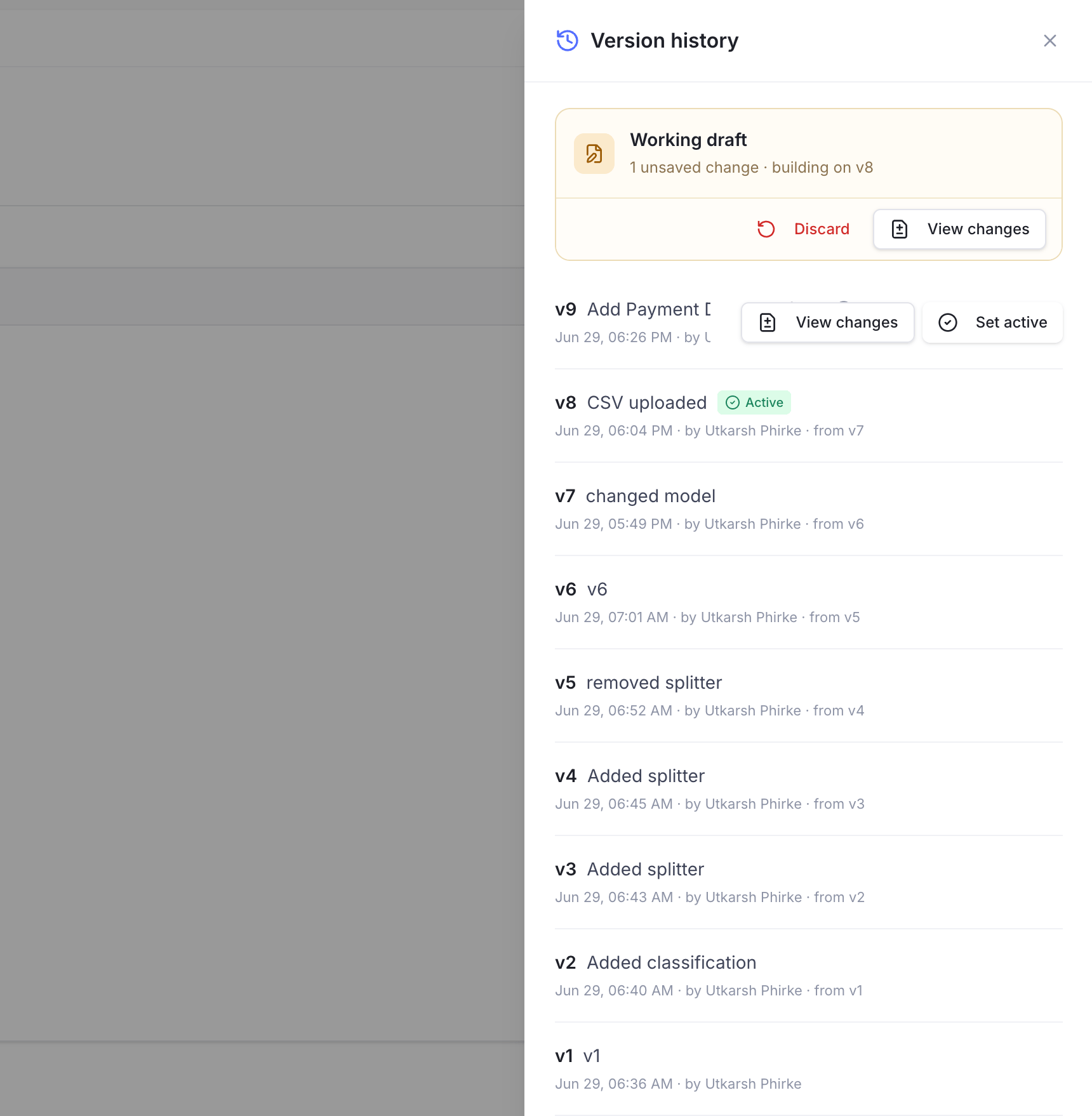
Open the version chip in the agent editor to see version history.
In version history, you can:
* See every published version.
* See which version is active.
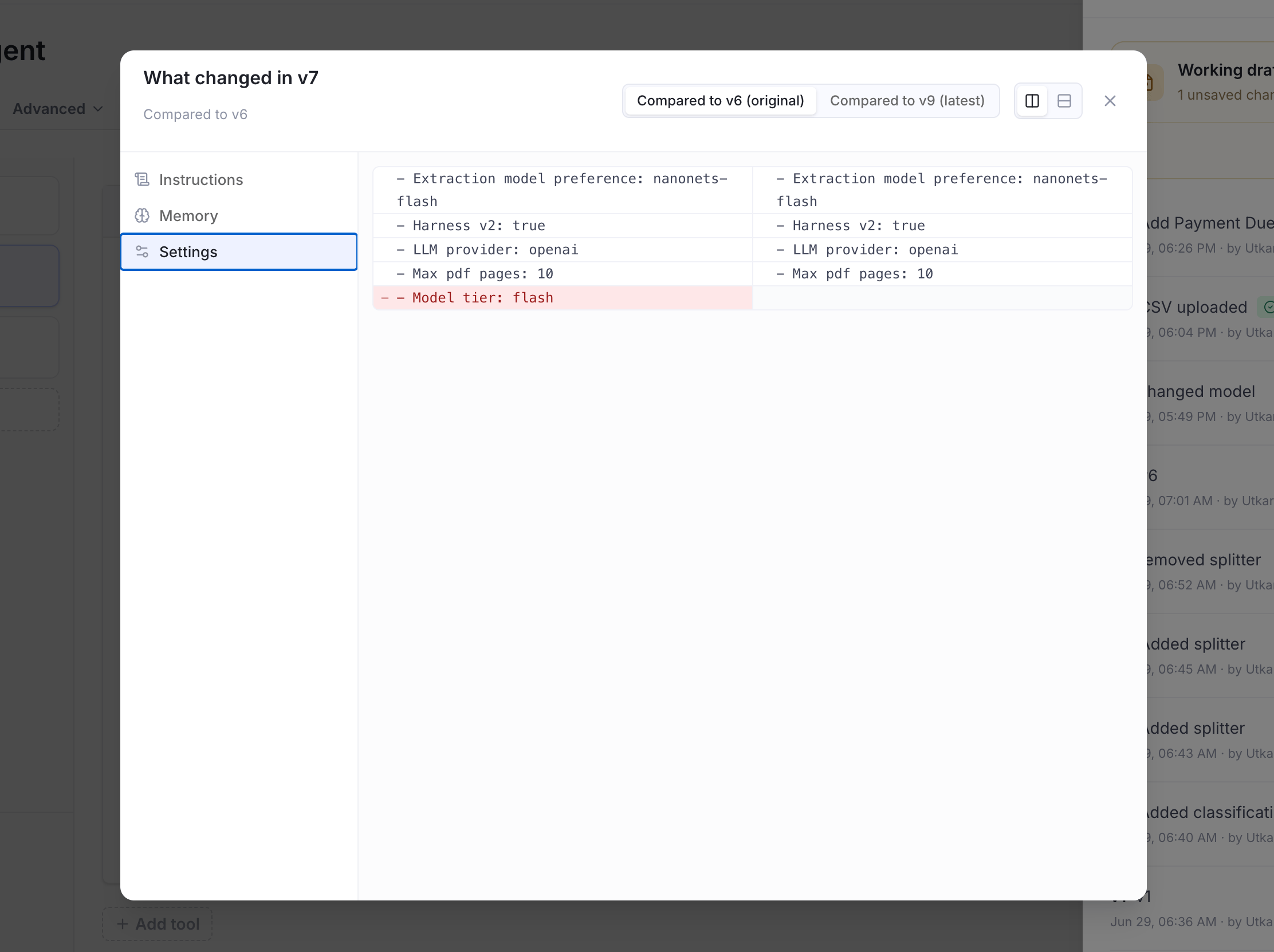
* View what changed in a version.
* See who published it and when.
* Switch the active version.
* Discard draft changes and return to the active version.
The first published version becomes active automatically. For later versions, you can make the new version active immediately or keep the current active version live.
## Active versions
The active version is the version tasks run on by default.
Use this workflow to change an agent safely:
1. Edit the draft.
2. Review the draft changes.
3. Publish a new version.
4. Make it active when you want live tasks to use it.
If you publish a version but do not make it active, the older active version keeps running live tasks.
Use this when you want to save a version for review, testing, or future rollback without changing production behavior yet.
## View version history
Open the version chip in the agent editor to see version history.
In version history, you can:
* See every published version.
* See which version is active.
* View what changed in a version.
* See who published it and when.
* Switch the active version.
* Discard draft changes and return to the active version.
 ## Run a specific version
When starting a task manually, open **Run on version** in the composer to choose what runs:
* **Latest draft** - run your current unpublished changes. Tasks started this way are labelled **Draft run**.
* A specific published version, such as **v2** - useful for testing an older version, comparing behavior, or reproducing a past run.
The default selection follows the **Live in production** setting: a Live agent defaults to its active version, a non-Live agent defaults to the draft. This choice applies to manual UI runs only - the API and triggers always run the active published version.
## Run a specific version
When starting a task manually, open **Run on version** in the composer to choose what runs:
* **Latest draft** - run your current unpublished changes. Tasks started this way are labelled **Draft run**.
* A specific published version, such as **v2** - useful for testing an older version, comparing behavior, or reproducing a past run.
The default selection follows the **Live in production** setting: a Live agent defaults to its active version, a non-Live agent defaults to the draft. This choice applies to manual UI runs only - the API and triggers always run the active published version.
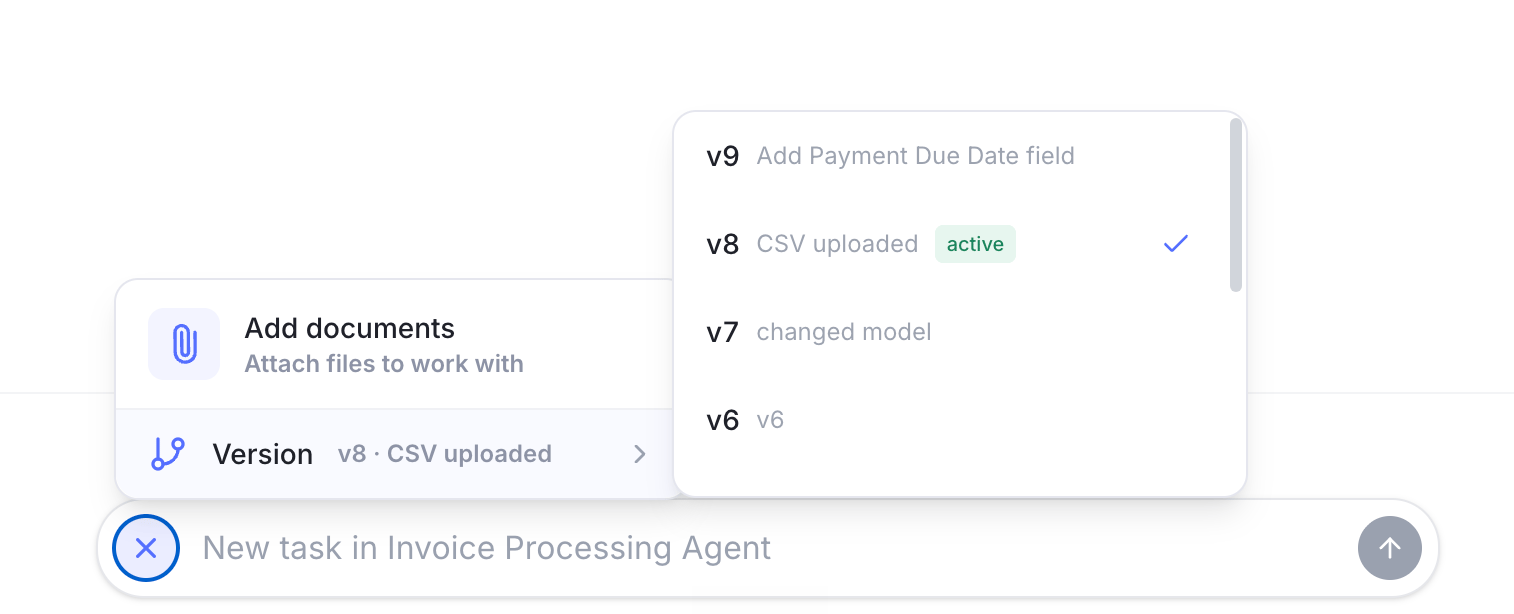 Tasks record the version they ran on, so you can trace results back to the exact agent version used. Draft runs show a **Draft run** label.
## Common workflows
### Safely update a live agent
1. Make changes in the draft.
2. Review the changes.
3. Publish a new version.
4. Set the new version active when ready.
### Save a version without changing live tasks
1. Make changes in the draft.
2. Publish the version.
3. Leave the current active version unchanged.
Live tasks continue using the older active version.
### Test changes before making them live
1. Make changes in the draft.
2. Start a manual task in the UI - it runs your draft (on a Live agent, pick **Latest draft** from **Run on version**). No publish needed.
3. If the test looks good, publish a version and set it active so the API and triggers pick it up.
To test through the API or a trigger specifically, publish a version first - those paths always run the active published version, never the draft.
### Roll back to an older version
1. Open version history.
2. Find the version you want to restore.
3. Select **Set active**.
This makes that version active and resets the editor draft back to that version.
### Discard draft changes
If you do not want to keep draft edits, open version history and choose **Discard** on the working draft.
This resets the draft back to the active version.
Discarding draft changes cannot be undone. Publish a version first if you want to keep a saved version.
Tasks record the version they ran on, so you can trace results back to the exact agent version used. Draft runs show a **Draft run** label.
## Common workflows
### Safely update a live agent
1. Make changes in the draft.
2. Review the changes.
3. Publish a new version.
4. Set the new version active when ready.
### Save a version without changing live tasks
1. Make changes in the draft.
2. Publish the version.
3. Leave the current active version unchanged.
Live tasks continue using the older active version.
### Test changes before making them live
1. Make changes in the draft.
2. Start a manual task in the UI - it runs your draft (on a Live agent, pick **Latest draft** from **Run on version**). No publish needed.
3. If the test looks good, publish a version and set it active so the API and triggers pick it up.
To test through the API or a trigger specifically, publish a version first - those paths always run the active published version, never the draft.
### Roll back to an older version
1. Open version history.
2. Find the version you want to restore.
3. Select **Set active**.
This makes that version active and resets the editor draft back to that version.
### Discard draft changes
If you do not want to keep draft edits, open version history and choose **Discard** on the working draft.
This resets the draft back to the active version.
Discarding draft changes cannot be undone. Publish a version first if you want to keep a saved version.