> ## Documentation Index
> Fetch the complete documentation index at: https://agents.nanonets.com/docs/llms.txt
> Use this file to discover all available pages before exploring further.
# Comments
> Discuss a task with your team, leave notes on specific fields or cells, mention teammates, and keep private internal notes.
Comments let your team collaborate on a task without leaving the platform.
Use them to ask a question, explain a correction, flag something for review, or keep a private note for teammates.
## Open the comments panel
Open a task, then click **Comments** in the top bar.
The comments panel opens on the right, next to the task feed. It shows every comment on the task, oldest to newest, with the newest in view.
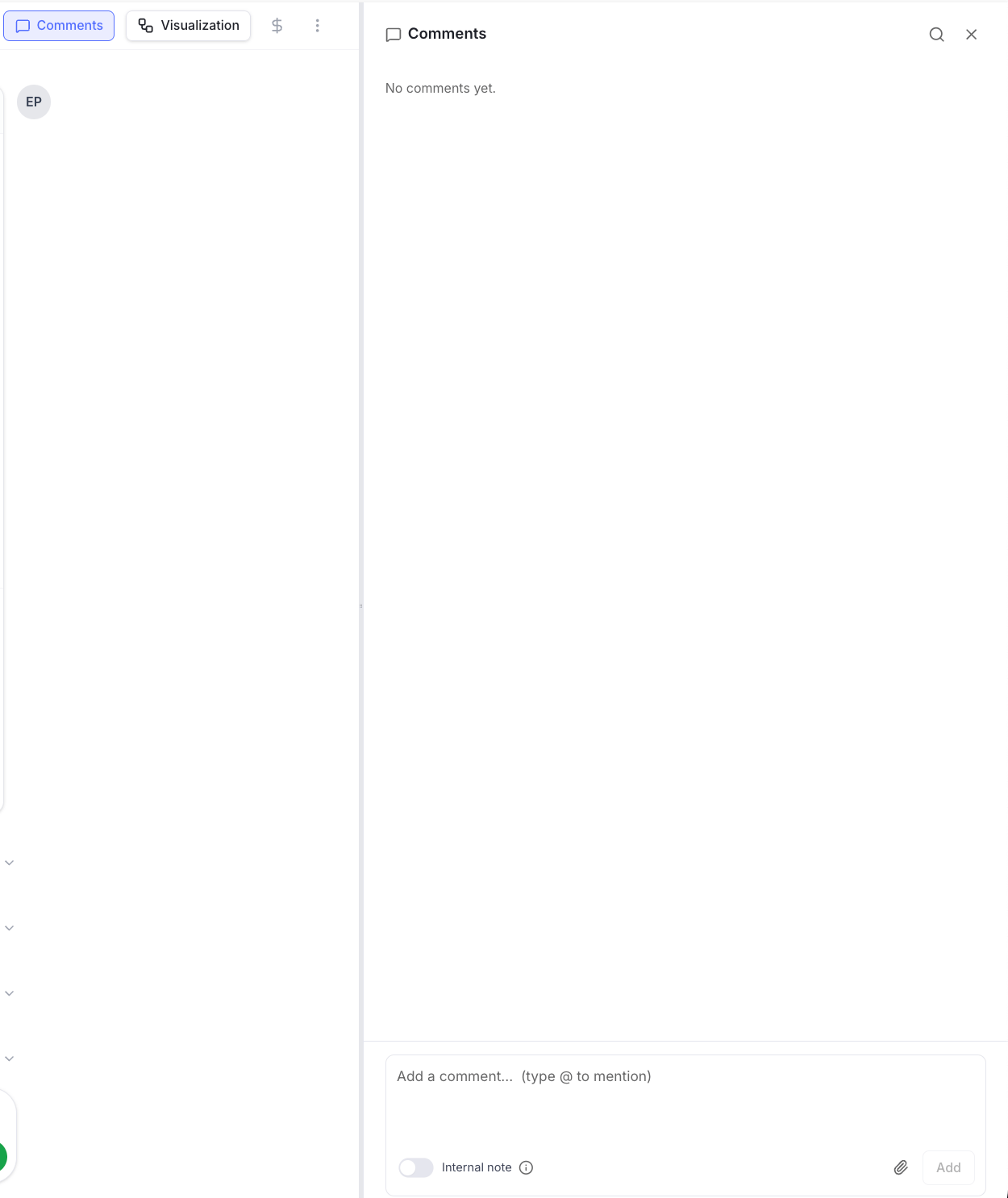 If you don't see the **Comments** button, your role may not include comment access. Ask an admin to update your permissions.
## Add a comment
1. Open the comments panel.
2. Type your message in the box at the bottom.
3. Press **Enter** to post, or **Shift + Enter** to start a new line.
Your comment appears in the panel right away, with your name and the time.
## Comment on a specific field or cell
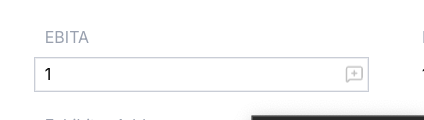
You can attach a comment to a single extracted field or a single table cell, so everyone knows exactly what you're referring to.
* Hover over a field or a table cell in the task result.
* Click the comment icon that appears. Its tooltip names the field — **Click to add a comment on** it, or **Click to view comments on** it once a thread exists.
* Type your comment and post it.
A small badge stays on that field or cell. Anyone can click the badge to read the thread or add a reply. This is the clearest way to point at "this value, right here" instead of describing it in words.
If you don't see the **Comments** button, your role may not include comment access. Ask an admin to update your permissions.
## Add a comment
1. Open the comments panel.
2. Type your message in the box at the bottom.
3. Press **Enter** to post, or **Shift + Enter** to start a new line.
Your comment appears in the panel right away, with your name and the time.
## Comment on a specific field or cell
You can attach a comment to a single extracted field or a single table cell, so everyone knows exactly what you're referring to.
* Hover over a field or a table cell in the task result.
* Click the comment icon that appears. Its tooltip names the field — **Click to add a comment on** it, or **Click to view comments on** it once a thread exists.
* Type your comment and post it.
A small badge stays on that field or cell. Anyone can click the badge to read the thread or add a reply. This is the clearest way to point at "this value, right here" instead of describing it in words.
 ## Comment on a step
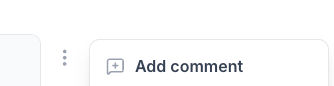
You can also comment on a whole step in the task feed, such as an extraction or a lookup.
* Hover over the step and open its three-dots (**⋯**) menu.
* Choose **Add comment**.
* Type your comment and post it.
The comment is attached to that step, so your team knows exactly which part of the task you're discussing.
## Comment on a step
You can also comment on a whole step in the task feed, such as an extraction or a lookup.
* Hover over the step and open its three-dots (**⋯**) menu.
* Choose **Add comment**.
* Type your comment and post it.
The comment is attached to that step, so your team knows exactly which part of the task you're discussing.
 ## Mention a teammate
Type `@` and start typing a name to mention a teammate.
Pick them from the list that appears. Mentioned teammates are notified so they can jump straight to the comment.
Use mentions when you need a specific person to look at something or answer a question.
## Keep a note internal
Some notes are meant for your team only, not for everyone on the task.
Turn on **Internal note** below the comment box before you post.
## Mention a teammate
Type `@` and start typing a name to mention a teammate.
Pick them from the list that appears. Mentioned teammates are notified so they can jump straight to the comment.
Use mentions when you need a specific person to look at something or answer a question.
## Keep a note internal
Some notes are meant for your team only, not for everyone on the task.
Turn on **Internal note** below the comment box before you post.
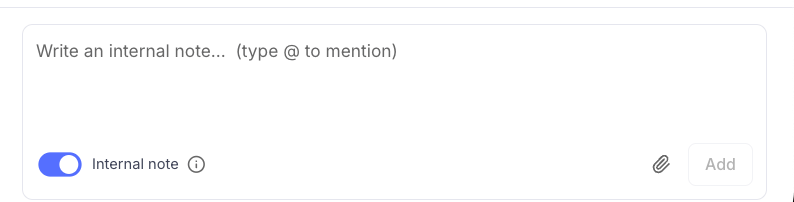 Internal notes are visible only to teammates who have internal-note access. Use them for private discussion, review notes, or context you don't want to share with everyone on the task. Everyone else sees the task as normal, without the internal note.
## Attach a file
You can attach an image or a PDF to a comment, for example a screenshot or a reference document.
* Click the attachment icon in the comment box.
* Choose an image or PDF (up to 25 MB each).
* Post the comment.
Only images and PDFs can be attached.
## See what's new
When someone adds a comment you haven't seen yet, a red dot appears on the **Comments** button.
The dot is per person, so it reflects your own unread comments. Opening the comments panel marks them as seen and clears the dot. Your own comments never show a dot.
## Comments during review
When a task pauses for review, the reviewer can leave a comment while approving or requesting changes.
If a task moves through several review stages, comments from earlier stages stay with the task. Open the comments panel to see the full history across every stage in one place.
Learn more in [Running tasks](/docs/guide/running-tasks).
Internal notes are visible only to teammates who have internal-note access. Use them for private discussion, review notes, or context you don't want to share with everyone on the task. Everyone else sees the task as normal, without the internal note.
## Attach a file
You can attach an image or a PDF to a comment, for example a screenshot or a reference document.
* Click the attachment icon in the comment box.
* Choose an image or PDF (up to 25 MB each).
* Post the comment.
Only images and PDFs can be attached.
## See what's new
When someone adds a comment you haven't seen yet, a red dot appears on the **Comments** button.
The dot is per person, so it reflects your own unread comments. Opening the comments panel marks them as seen and clears the dot. Your own comments never show a dot.
## Comments during review
When a task pauses for review, the reviewer can leave a comment while approving or requesting changes.
If a task moves through several review stages, comments from earlier stages stay with the task. Open the comments panel to see the full history across every stage in one place.
Learn more in [Running tasks](/docs/guide/running-tasks).