> ## Documentation Index
> Fetch the complete documentation index at: https://agents.nanonets.com/docs/llms.txt
> Use this file to discover all available pages before exploring further.
# Extract data
> Use agents to read documents and turn them into clean, structured data.
Data extraction means the agent reads a document and pulls out the information you care about.
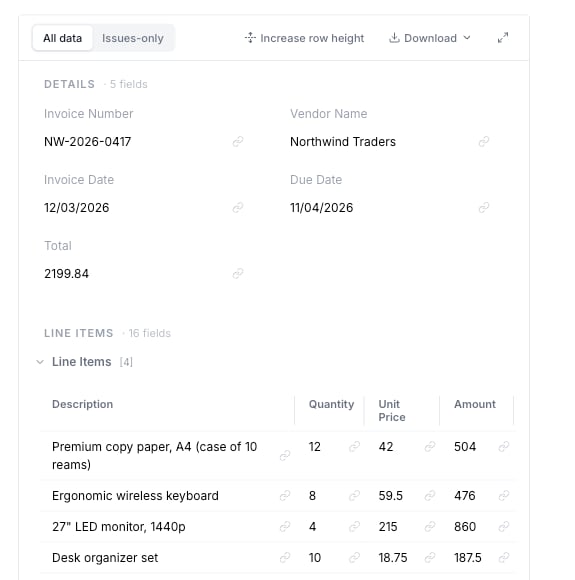
For example, an agent can read an invoice and return the vendor, invoice number, date, line items, and total.
 ## What files can be used
Agents can work with common business files, including:
* PDFs
* Images
* Word documents
* Excel spreadsheets
* CSV files
* PowerPoint files
* Text and Markdown files
## How extraction works
Upload a file or let the agent receive it from email, a folder, or another connected app.
List the fields you need, such as invoice number, vendor name, due date, total, and line items.
The agent returns the data in a table or structured result. When available, it also shows where the value was found in the document.
The agent can add the data to a spreadsheet, create a file, update a business system, or return it to the user.
## Define the fields you need
Be specific about the fields the agent should extract.
Good examples:
* "Extract invoice number, vendor name, invoice date, due date, subtotal, tax, total, and currency."
* "Extract each line item with description, quantity, unit price, and line total."
* "If a purchase order number is missing, mark it as missing and ask the user."
Use the field names your team already uses. This makes the result easier to review and export.
## Use source checks
For many documents, the agent can show where a value came from in the original file.
This helps reviewers quickly answer:
* Did the agent read the right value?
* Is the value missing from the document?
* Did the agent confuse two similar fields?
## Add quality rules
Rules help the agent catch common problems.
Examples:
* "The invoice total must equal subtotal plus tax."
* "The due date must be after the invoice date."
* "Every line item must have a quantity and unit price."
* "Ask for review if the total is above \$10,000."
## Improve over time
When you correct an extraction, turn that correction into a rule.
For example, if a vendor writes their name in three different ways, teach the agent the final name your team wants to use.
Learn more in [Rules](/docs/guide/rules).
## What files can be used
Agents can work with common business files, including:
* PDFs
* Images
* Word documents
* Excel spreadsheets
* CSV files
* PowerPoint files
* Text and Markdown files
## How extraction works
Upload a file or let the agent receive it from email, a folder, or another connected app.
List the fields you need, such as invoice number, vendor name, due date, total, and line items.
The agent returns the data in a table or structured result. When available, it also shows where the value was found in the document.
The agent can add the data to a spreadsheet, create a file, update a business system, or return it to the user.
## Define the fields you need
Be specific about the fields the agent should extract.
Good examples:
* "Extract invoice number, vendor name, invoice date, due date, subtotal, tax, total, and currency."
* "Extract each line item with description, quantity, unit price, and line total."
* "If a purchase order number is missing, mark it as missing and ask the user."
Use the field names your team already uses. This makes the result easier to review and export.
## Use source checks
For many documents, the agent can show where a value came from in the original file.
This helps reviewers quickly answer:
* Did the agent read the right value?
* Is the value missing from the document?
* Did the agent confuse two similar fields?
## Add quality rules
Rules help the agent catch common problems.
Examples:
* "The invoice total must equal subtotal plus tax."
* "The due date must be after the invoice date."
* "Every line item must have a quantity and unit price."
* "Ask for review if the total is above \$10,000."
## Improve over time
When you correct an extraction, turn that correction into a rule.
For example, if a vendor writes their name in three different ways, teach the agent the final name your team wants to use.
Learn more in [Rules](/docs/guide/rules).