> ## Documentation Index
> Fetch the complete documentation index at: https://agents.nanonets.com/docs/llms.txt
> Use this file to discover all available pages before exploring further.
# Running tasks
> Start an agent run, follow its progress, answer questions, and review the result.
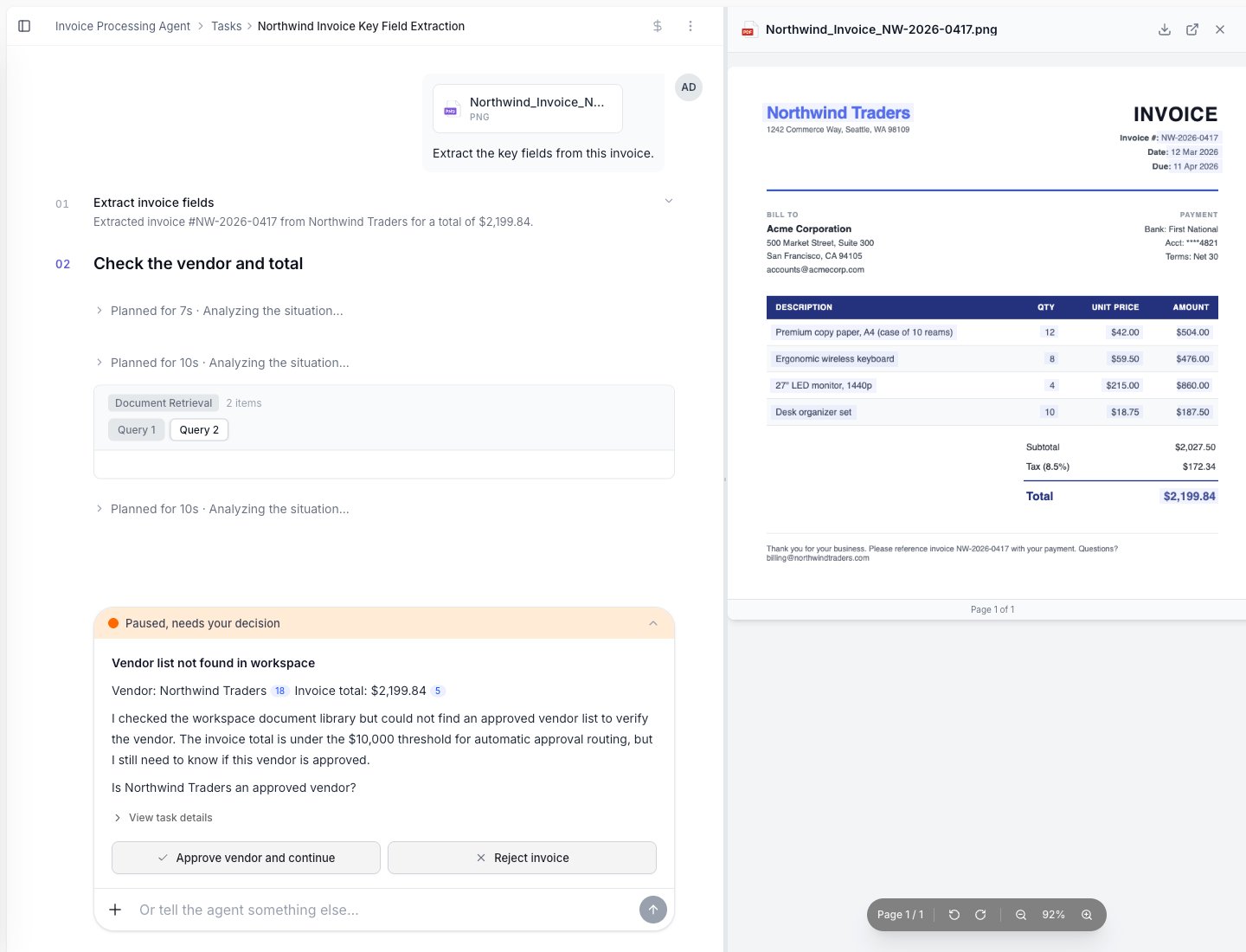
A task is one run of an agent.
For example, if an invoice agent reviews five invoices, that is five tasks.
 ## Start a task
You can start a task in a few ways:
* Start it manually from the agent.
* Upload a file and ask the agent to process it.
* Let a trigger start it, such as a new email or a schedule.
* Start it from an app or API if your team has set that up.
## Follow the task feed
The task feed shows the agent's work step by step.
You may see:
* Files the agent read.
* Data the agent extracted.
* Lookups it performed.
* Questions it asked.
* Files or messages it created.
* Final results.
## When the agent asks a question
Sometimes the agent needs help.
It may ask because a field is missing, a result is unclear, or your rules require human input.
## Start a task
You can start a task in a few ways:
* Start it manually from the agent.
* Upload a file and ask the agent to process it.
* Let a trigger start it, such as a new email or a schedule.
* Start it from an app or API if your team has set that up.
## Follow the task feed
The task feed shows the agent's work step by step.
You may see:
* Files the agent read.
* Data the agent extracted.
* Lookups it performed.
* Questions it asked.
* Files or messages it created.
* Final results.
## When the agent asks a question
Sometimes the agent needs help.
It may ask because a field is missing, a result is unclear, or your rules require human input.
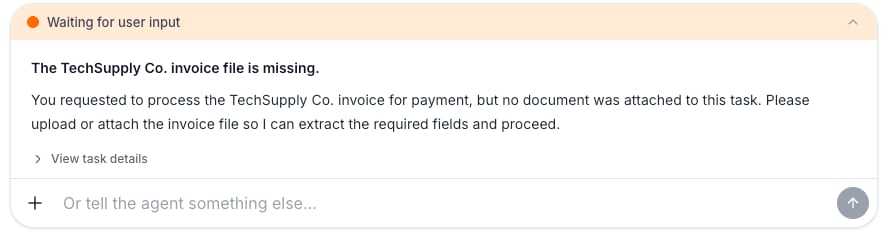 When this happens:
1. Read the question.
2. Check the document or context if needed.
3. Reply with the missing information.
4. The agent continues the task.
## When a task needs review
Some tasks pause for approval.
This is useful for payments, customer messages, system updates, or anything your team wants a person to check first.
When this happens:
1. Read the question.
2. Check the document or context if needed.
3. Reply with the missing information.
4. The agent continues the task.
## When a task needs review
Some tasks pause for approval.
This is useful for payments, customer messages, system updates, or anything your team wants a person to check first.
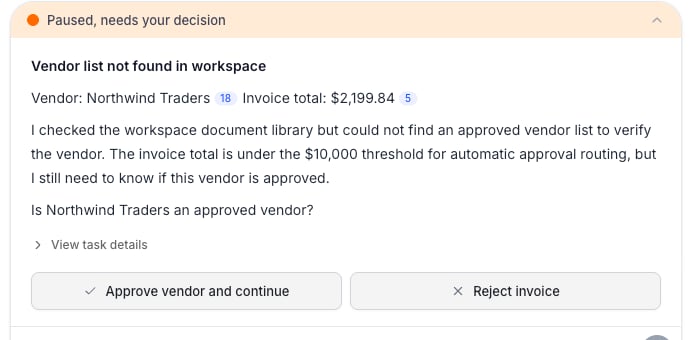 Review the result, then approve or reject it based on your team's process.
## Common task states
| State | What it means | What you should do |
| ----------------- | --------------------------- | -------------------------------- |
| Running | The agent is still working. | Wait or watch the feed. |
| Waiting for input | The agent asked a question. | Reply in the task. |
| Awaiting review | A human approval is needed. | Review and approve or reject. |
| Completed | The task is done. | Check the final result. |
| Failed | Something went wrong. | Review the feed or ask an admin. |
## Improve the next run
After a task finishes, look for repeated corrections.
If you keep fixing the same thing, add a rule so the agent can handle it next time.
Learn more in [Rules](/docs/guide/rules).
Review the result, then approve or reject it based on your team's process.
## Common task states
| State | What it means | What you should do |
| ----------------- | --------------------------- | -------------------------------- |
| Running | The agent is still working. | Wait or watch the feed. |
| Waiting for input | The agent asked a question. | Reply in the task. |
| Awaiting review | A human approval is needed. | Review and approve or reject. |
| Completed | The task is done. | Check the final result. |
| Failed | Something went wrong. | Review the feed or ask an admin. |
## Improve the next run
After a task finishes, look for repeated corrections.
If you keep fixing the same thing, add a rule so the agent can handle it next time.
Learn more in [Rules](/docs/guide/rules).