> ## Documentation Index
> Fetch the complete documentation index at: https://agents.nanonets.com/docs/llms.txt
> Use this file to discover all available pages before exploring further.
# Tag groups
> Group your learnings by the things they apply to, like vendors or document types, so the agent uses the right rule in the right place.
A rule is often only true for one vendor, one customer, or one document type. **Tag groups** let you tell the agent *what* a rule applies to, so it does not apply that rule everywhere.
For example:
* "Northwind Traders prints the invoice date in DD/MM/YYYY" should only apply to **Northwind Traders** invoices.
* "Bank statements have the closing balance on the last page" should only apply to **bank statements**.
A tag group like `Vendor` or `Document Type` is how the agent keeps these straight.
## How it works
Give it a name and a description. For example, name it `Vendor` with the description "the company that issued the invoice".
On every task, the agent reads the document and tags it with the matching value (for example `Vendor: Northwind Traders`).
When you correct the agent or add a rule during that task, the rule is scoped to that value. It only applies next time the same value shows up.
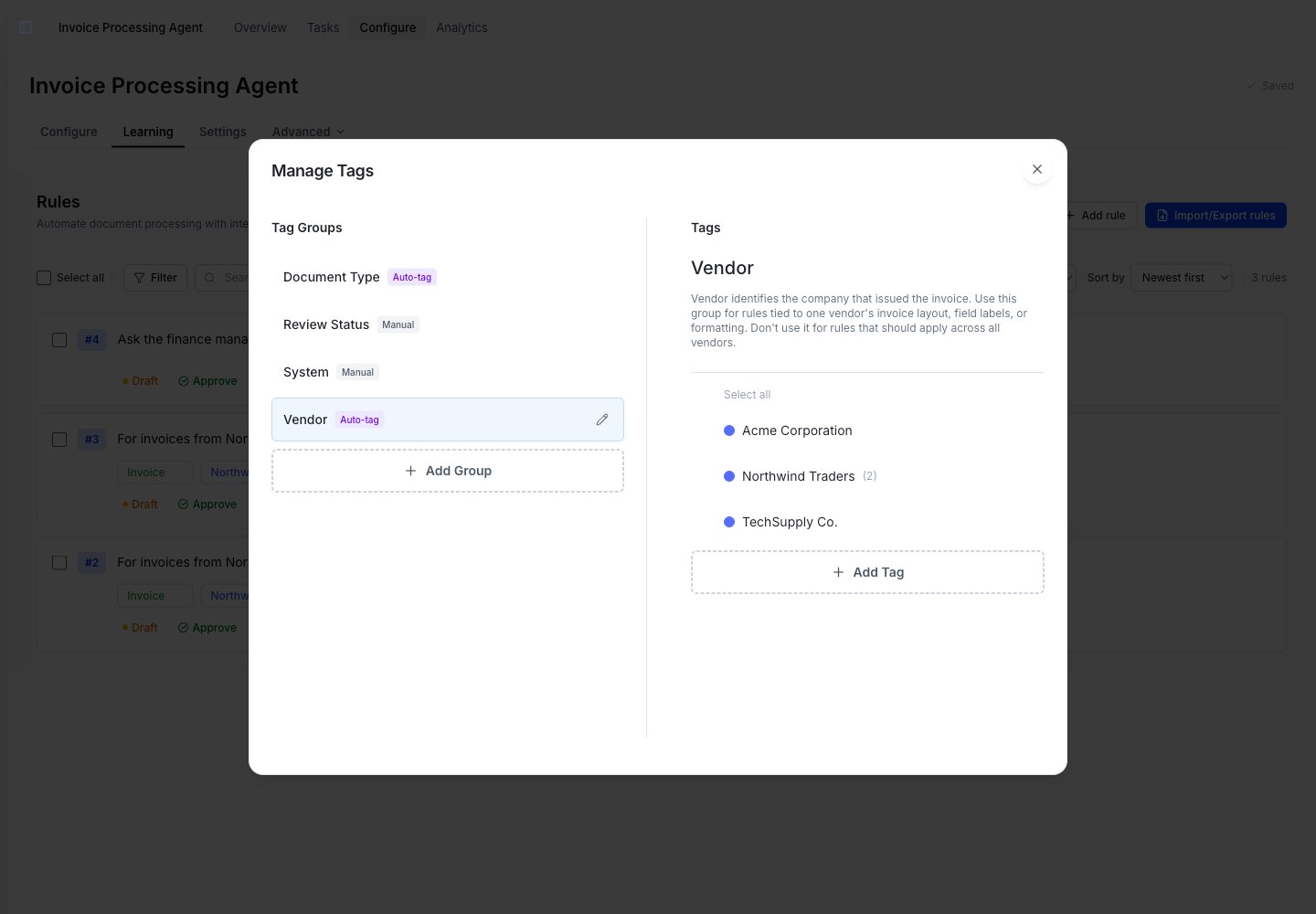 When a tag group is set to add values automatically, the agent recognises and tags tasks with it on its own.
## Choose how the agent handles values
Each tag group has one switch: **Automatically add new values**.
The agent creates matching values and saves related rules under the right value, tagging tasks on its own. Best for open-ended sets like Vendor, Customer, or Currency.
You create and apply every value yourself, and the agent won't tag tasks with this group. Best for fixed labels like Priority, Status, or Review Type.
In the **Manage Tags** list, an **Auto-tag** label marks groups with the switch on, and a **Manual** label marks groups with it off.
Automatically add new values is **on by default** for new groups. Turn it off for groups you'd rather curate by hand.
## Write a good description
The description is the most important field. The agent uses it to decide **which value a task belongs to** and **which rules belong to this group**. A vague description leads to wrong tags and mis-scoped rules.
When a tag group is set to add values automatically, the agent recognises and tags tasks with it on its own.
## Choose how the agent handles values
Each tag group has one switch: **Automatically add new values**.
The agent creates matching values and saves related rules under the right value, tagging tasks on its own. Best for open-ended sets like Vendor, Customer, or Currency.
You create and apply every value yourself, and the agent won't tag tasks with this group. Best for fixed labels like Priority, Status, or Review Type.
In the **Manage Tags** list, an **Auto-tag** label marks groups with the switch on, and a **Manual** label marks groups with it off.
Automatically add new values is **on by default** for new groups. Turn it off for groups you'd rather curate by hand.
## Write a good description
The description is the most important field. The agent uses it to decide **which value a task belongs to** and **which rules belong to this group**. A vague description leads to wrong tags and mis-scoped rules.
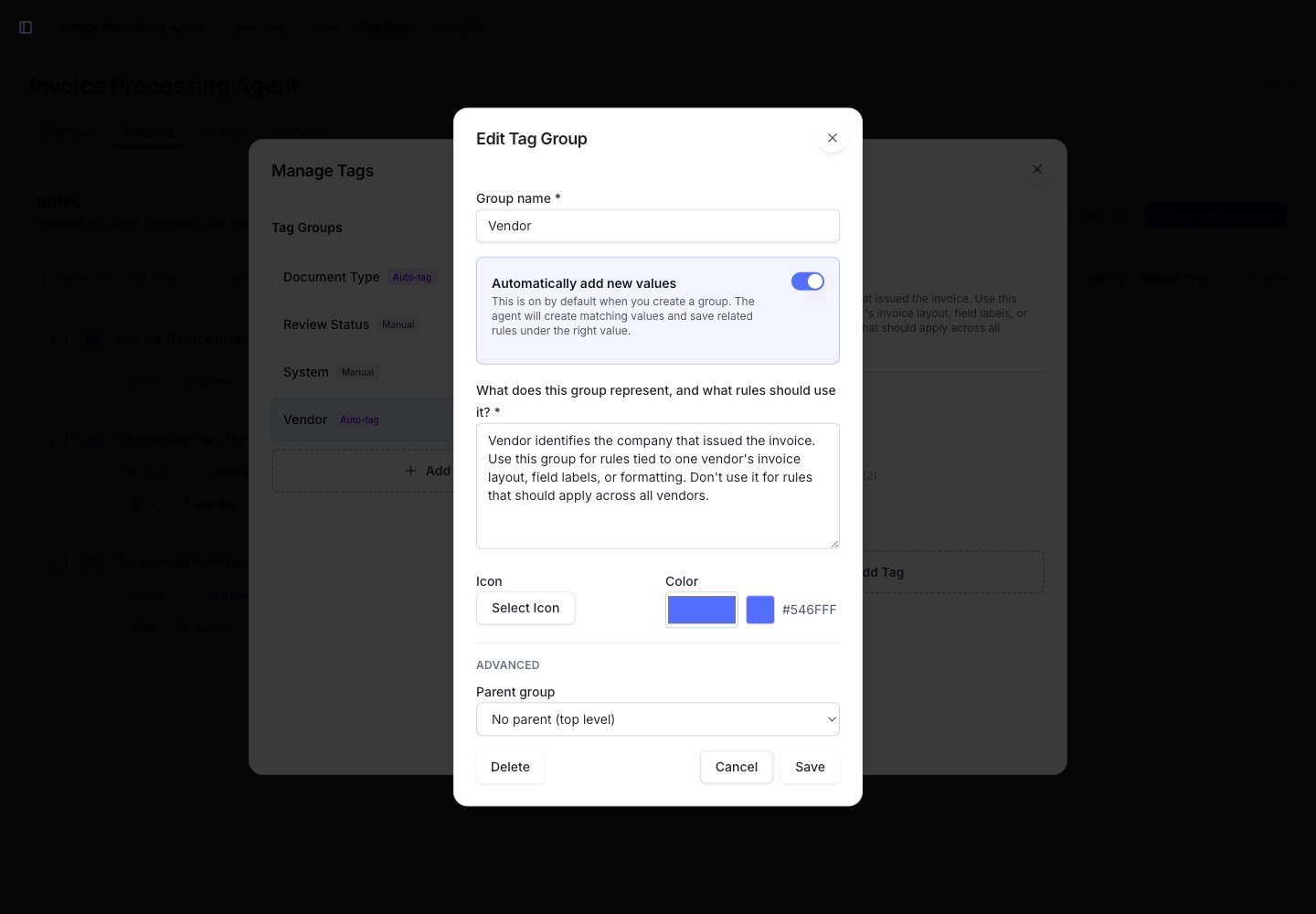 A good description does two things:
1. Says what the group identifies.
2. Says which kinds of rules should be scoped to it (and which should not).
```text Vendor theme={null}
Vendor identifies the company that issued the invoice. Use this group for
rules tied to one vendor's invoice layout, field labels, or formatting.
Don't use it for rules that should apply across all vendors.
```
Name a concrete example of a rule that *belongs* in the group and one that *doesn't*. That single sentence is what keeps the agent from over-scoping or under-scoping a learning.
## How values scope a rule
When you save a rule during a task, the agent attaches it to the values that task was tagged with.
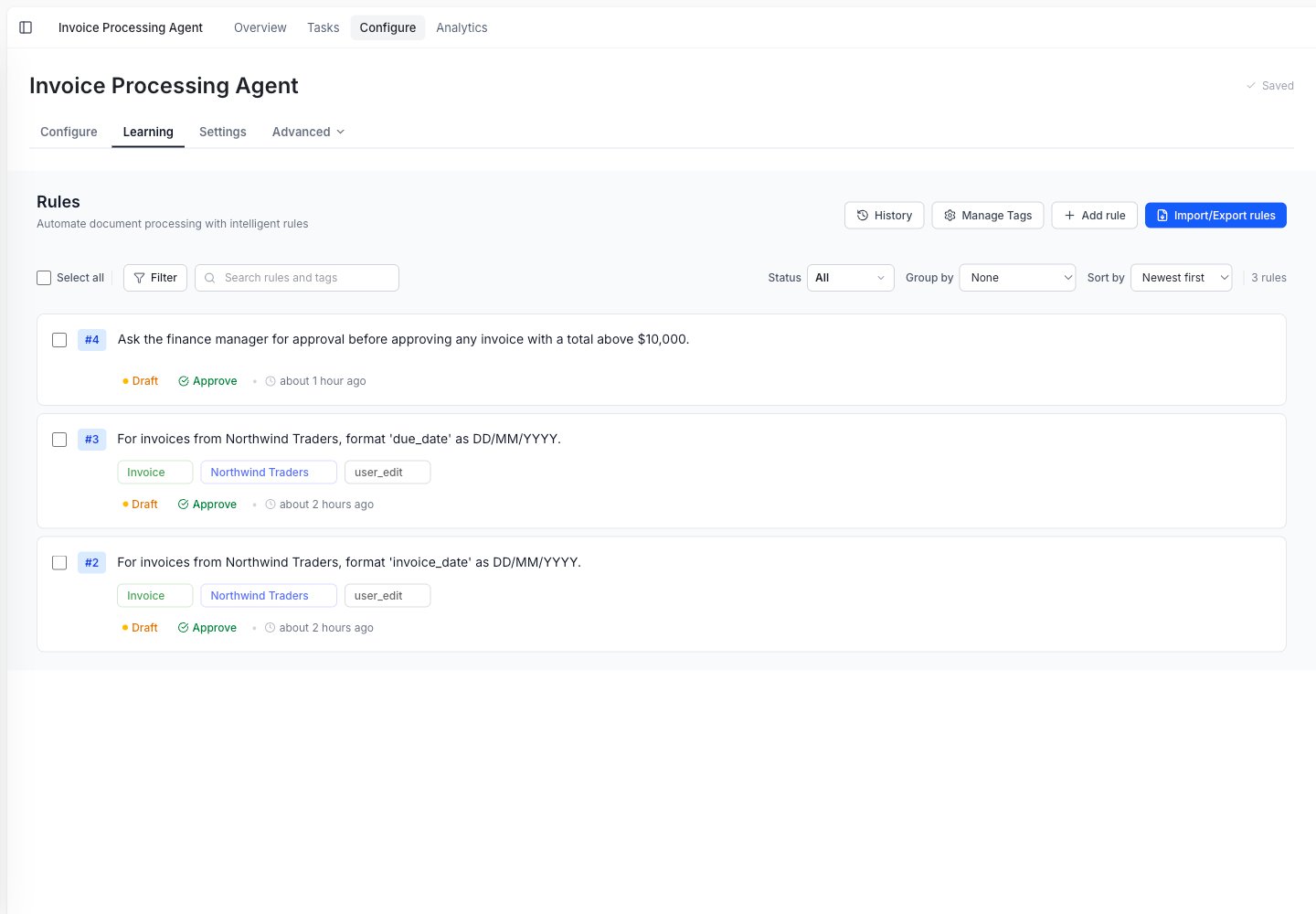
* A rule learned on a **Northwind Traders** invoice is saved under `Vendor: Northwind Traders` and only applies to Northwind Traders invoices.
* A rule that should apply to **every** invoice should not be scoped to a vendor. Keep it as a global (unscoped) rule instead.
A good description does two things:
1. Says what the group identifies.
2. Says which kinds of rules should be scoped to it (and which should not).
```text Vendor theme={null}
Vendor identifies the company that issued the invoice. Use this group for
rules tied to one vendor's invoice layout, field labels, or formatting.
Don't use it for rules that should apply across all vendors.
```
Name a concrete example of a rule that *belongs* in the group and one that *doesn't*. That single sentence is what keeps the agent from over-scoping or under-scoping a learning.
## How values scope a rule
When you save a rule during a task, the agent attaches it to the values that task was tagged with.
* A rule learned on a **Northwind Traders** invoice is saved under `Vendor: Northwind Traders` and only applies to Northwind Traders invoices.
* A rule that should apply to **every** invoice should not be scoped to a vendor. Keep it as a global (unscoped) rule instead.
 ## When the agent tags the wrong value
If learnings aren't landing where you expect, the fix is usually the group's description or a rule's scope. Use this as a checklist:
| What you see | Likely cause | What to tweak |
| ------------------------------- | ---------------------------------------------------------------------------------- | ------------------------------------------------------------------------------------------------------------------------------------------------ |
| A rule isn't applying | The task wasn't tagged with that value, or the rule is scoped to a different value | Open the task and check its tags. If the value is missing or wrong, sharpen the group **description** so the agent tags it consistently. |
| A rule applies everywhere | The rule is scoped too broadly | If it should only apply in one context, scope it to the right value. If it really is general, that's fine; leave it as a global (unscoped) rule. |
| The agent never tags this group | **Automatically add new values** is off | Turn it on so the agent tags tasks and adds values. |
The single highest-leverage fix is the group **description**. The agent uses it both to pick the right value and to decide which rules belong to the group, so a sharper description fixes most tagging and scoping problems at once.
See [Rules](/docs/guide/rules) for how to edit values and rules.
## When you don't need a tag group
You don't need a tag group for everything.
* If a rule applies to **every** task, keep it as a global (unscoped) rule.
* If you only have one vendor or one document type, you don't need to group by it yet.
Start without tag groups. Add one when you notice a rule should only apply in a specific context, like one vendor's layout.
## When the agent tags the wrong value
If learnings aren't landing where you expect, the fix is usually the group's description or a rule's scope. Use this as a checklist:
| What you see | Likely cause | What to tweak |
| ------------------------------- | ---------------------------------------------------------------------------------- | ------------------------------------------------------------------------------------------------------------------------------------------------ |
| A rule isn't applying | The task wasn't tagged with that value, or the rule is scoped to a different value | Open the task and check its tags. If the value is missing or wrong, sharpen the group **description** so the agent tags it consistently. |
| A rule applies everywhere | The rule is scoped too broadly | If it should only apply in one context, scope it to the right value. If it really is general, that's fine; leave it as a global (unscoped) rule. |
| The agent never tags this group | **Automatically add new values** is off | Turn it on so the agent tags tasks and adds values. |
The single highest-leverage fix is the group **description**. The agent uses it both to pick the right value and to decide which rules belong to the group, so a sharper description fixes most tagging and scoping problems at once.
See [Rules](/docs/guide/rules) for how to edit values and rules.
## When you don't need a tag group
You don't need a tag group for everything.
* If a rule applies to **every** task, keep it as a global (unscoped) rule.
* If you only have one vendor or one document type, you don't need to group by it yet.
Start without tag groups. Add one when you notice a rule should only apply in a specific context, like one vendor's layout.