

Create the agent
1
Open Agents
Go to Agents from the sidebar.
2
Select Create Agent
Choose Create Agent. Nanonets creates a new agent and opens the setup screen.
3
Name the agent
Enter a short name that describes the work, such as Invoice Processing Agent.
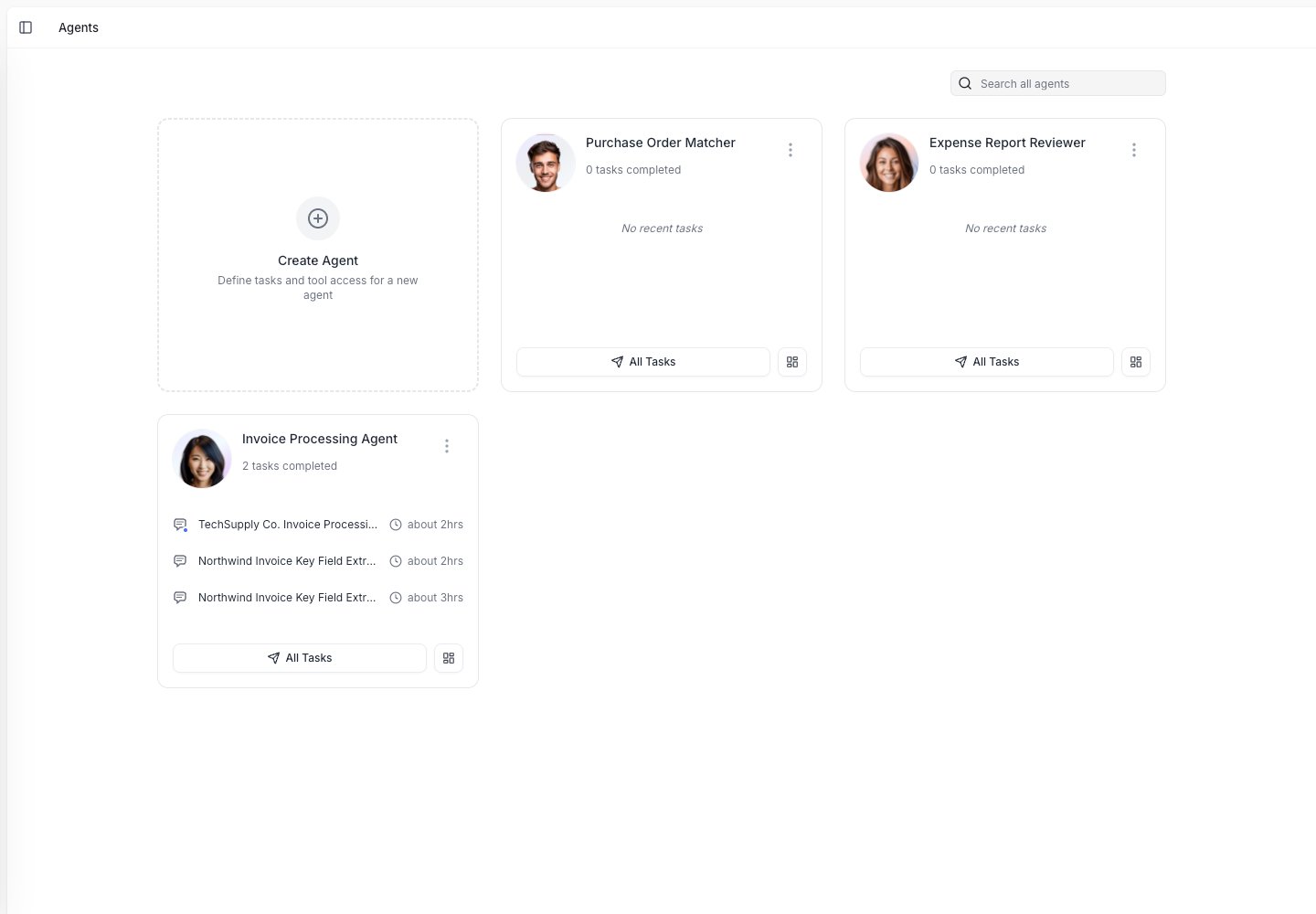
The Agents page lists your agents. Click Create Agent to set up a new one.
The Configure screen
The Configure screen shows the parts of your agent on the left: Role and Behaviour and your Steps, with Tools and Run when below. Select any item to edit its details on the right.Add role and behaviour
Role and Behaviour describes who the agent is and the core process it follows: the job itself. Keep it focused on that; preferences, guardrails, and exceptions are better added as rules. Write it like you are explaining the job to a new teammate. Good examples:- “You are an accounts payable assistant who reviews vendor invoices.”
- “Read each invoice carefully and extract the fields the finance team needs.”
- “If something looks wrong or a field is missing, flag it instead of guessing.”
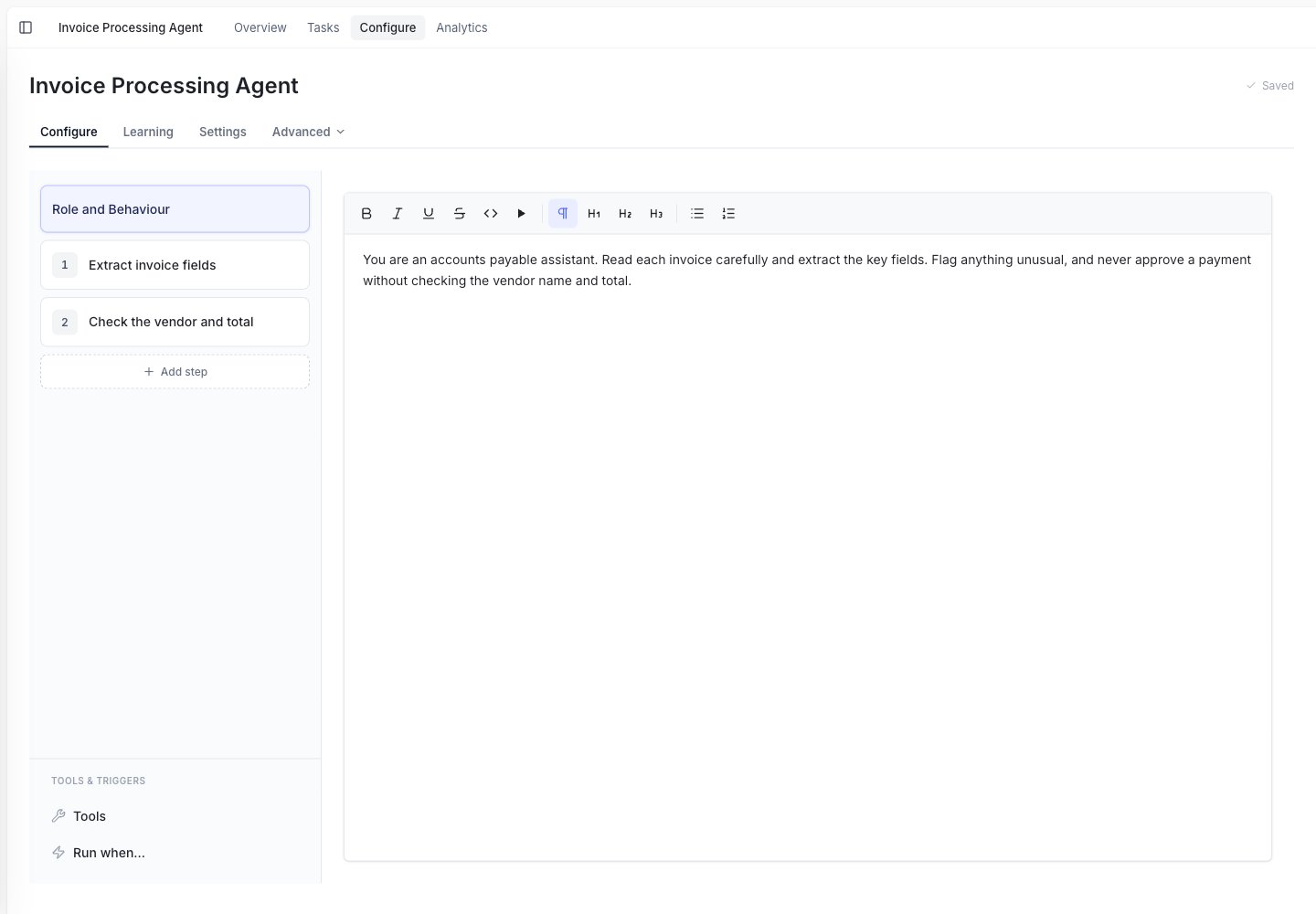
Role and Behaviour: the agent's role and the core process it follows on every task.
Add steps
Steps break the work into smaller parts. This helps the agent follow the same process each time. For an invoice agent, steps might be:- Read the invoice.
- Extract invoice data.
- Look up the vendor.
- Ask for approval if needed.
- Send the result to a spreadsheet.
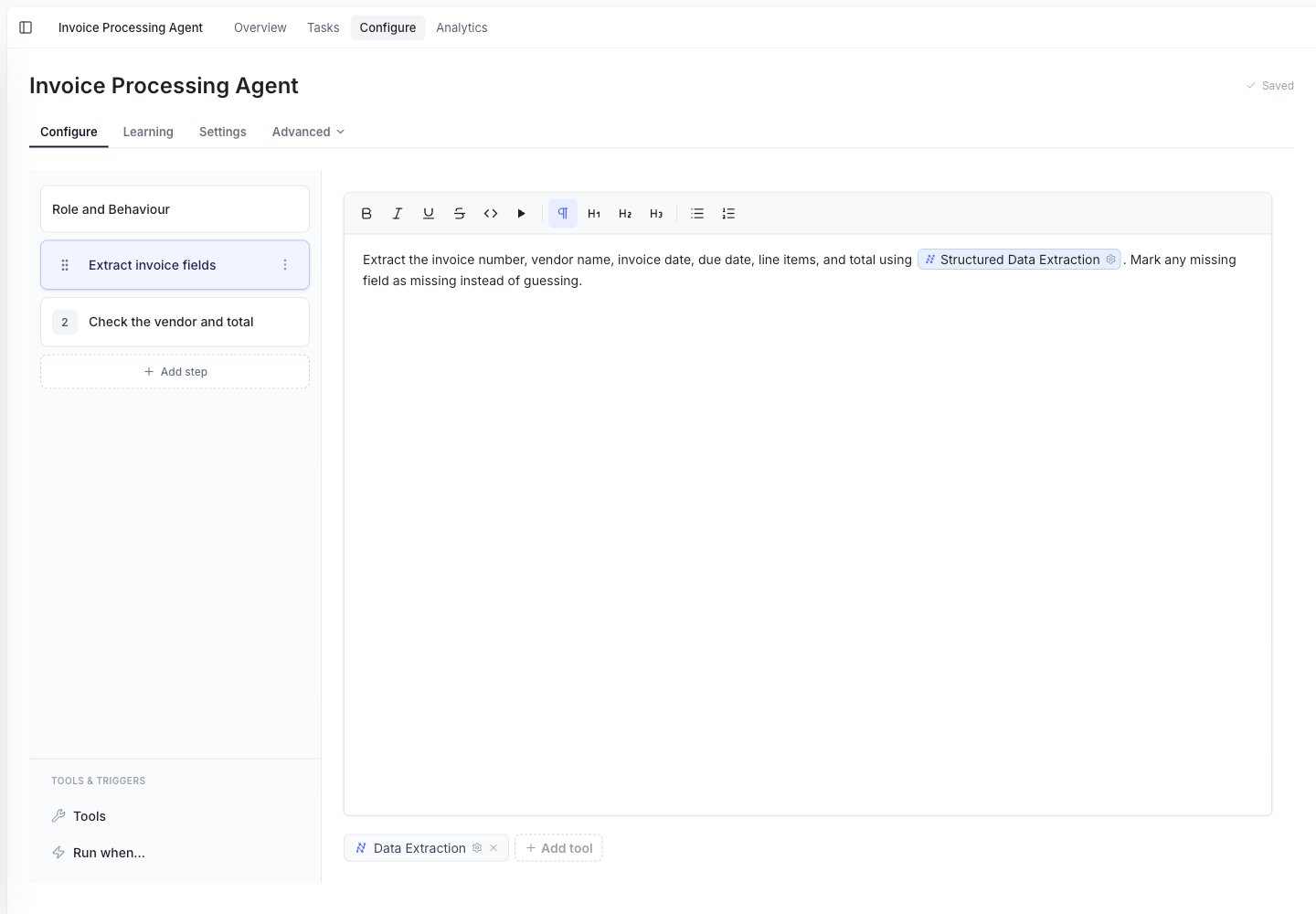
Each step has its own instructions and the tools it's allowed to use, shown as labels (here, Data Extraction).
Add tools
Tools are actions the agent can take. For example, an agent can extract data from a PDF, look up a row in Google Sheets, create a file, send a Slack message, or ask a person a question. Only add tools the agent needs for this job. More tools are not always better.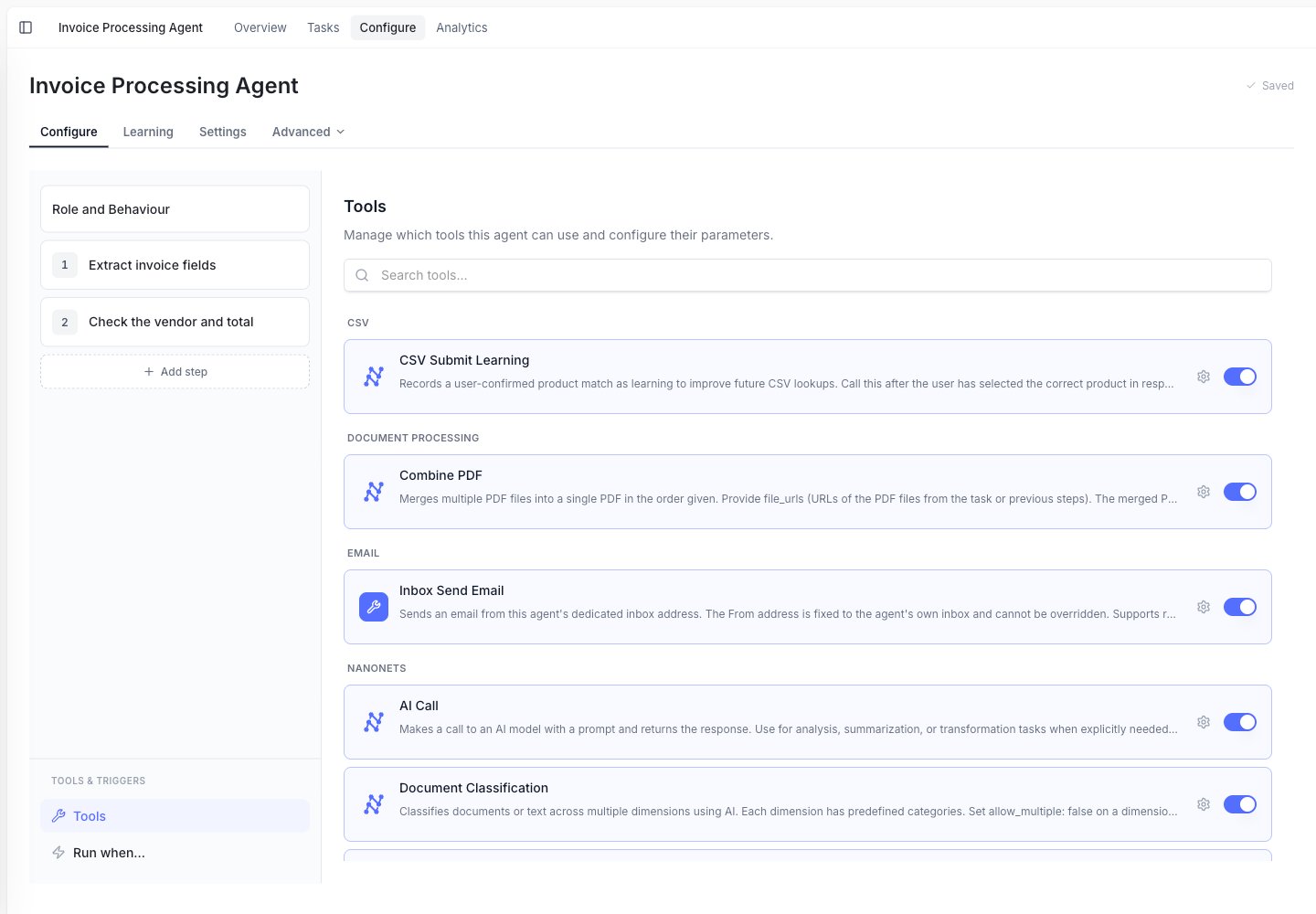
The Tools panel: search, browse by category, and toggle on the tools this agent needs.
Reference a tool in a step
You can also point to a tool directly inside a step’s instructions. Type@ to bring up the tool menu, then pick the tool, and it’s inserted as a label. This tells the agent exactly which tool to use at that point in the work.
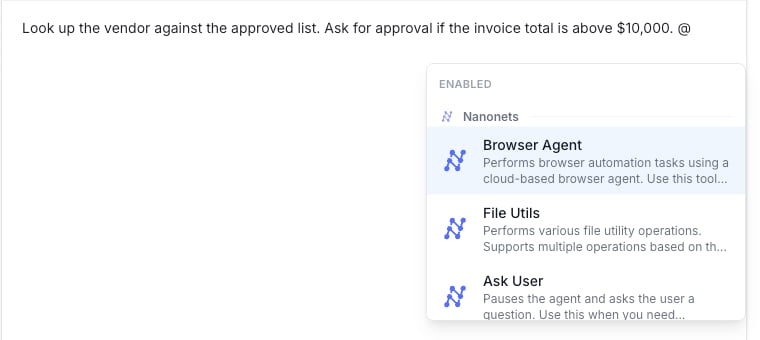
Type @ in a step's instructions to open the tool menu and insert a tool reference.
Choose when it should run
Open Run when… to start the agent automatically. Common options include:- When an email arrives.
- On a schedule.
- When another connected app sends an event.
- When a user starts a task by hand.
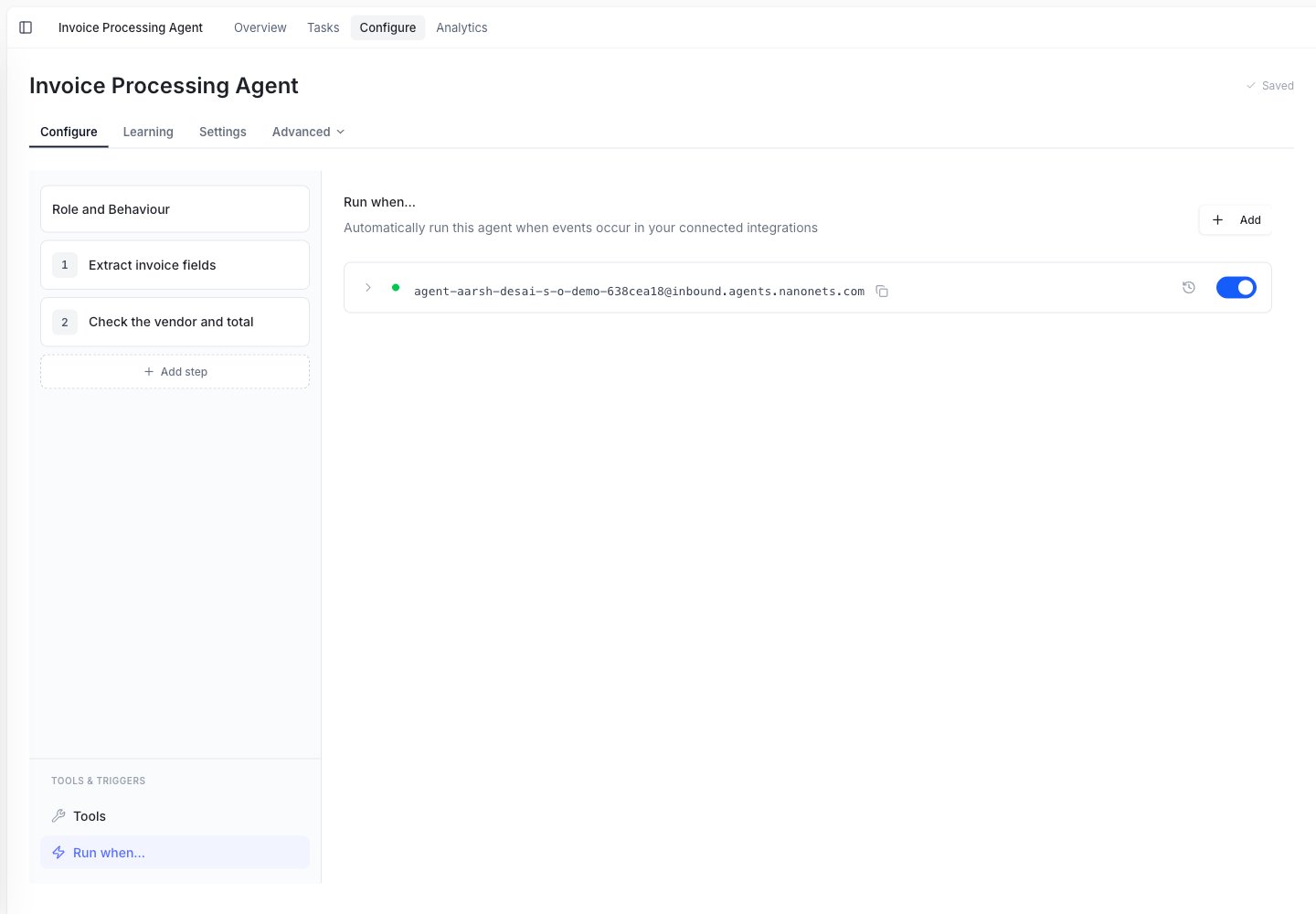
Run when…: start the agent automatically, for example when an email arrives at its dedicated inbox address.
Write clear instructions
You guide an agent in three places: Role and Behaviour (how it should act on every task), Steps (the order of work), and Rules (the specifics it learns over time, covered in Rules). You don’t need technical prompts. For Role and Behaviour and Steps, write plain business directions, the way you’d brief a new teammate. A simple pattern:1
Say what the agent should do
Example: “Extract the invoice number, vendor name, invoice date, due date, line items, and total.”
2
Say what matters most
Example: “Do not guess missing values. Mark them as missing.”
3
Say when to ask for help
Example: “Ask the user if the total does not match the line items.”
4
Say where the result should go
Example: “Add one row per invoice to the Invoice Review spreadsheet.”
What goes in the prompt vs a rule
Role and Behaviour and Steps describe the agent’s job: who it is and the core process it follows. Keep them focused on that. Everything you add on top (preferences, corrections, guardrails, exceptions) is a rule. A rule is either:- Global: applies to every task. Best for always-on guardrails, like “Ask for approval before any payment above $10,000.” Leave it unscoped so it applies everywhere.
- Scoped: applies only to a specific vendor, customer, or document type, using tag groups. Best for things like “For Northwind Traders invoices, the date is DD/MM/YYYY.”
The test: Role and Behaviour and Steps explain the task itself. Anything you’d refine or add over time is a rule, so keep it global if it always applies, or scope it to a tag group if it only applies sometimes.
Scoped rules use tag groups. See Tag groups for those, and Rules for how rules are created and approved.