

The hierarchy
Organization
An organization is the top-level account. It usually represents your company. It is where admins manage company-level settings such as users, workspaces, billing, and policies.Workspace
A workspace is where day-to-day work happens. Workspaces contain:- Agents
- Tasks
- Connected apps
- Files and documents
- API keys
- Workspace members and roles
Switch organizations or workspaces
Open the profile menu in the sidebar to switch between the organizations and workspaces you can access.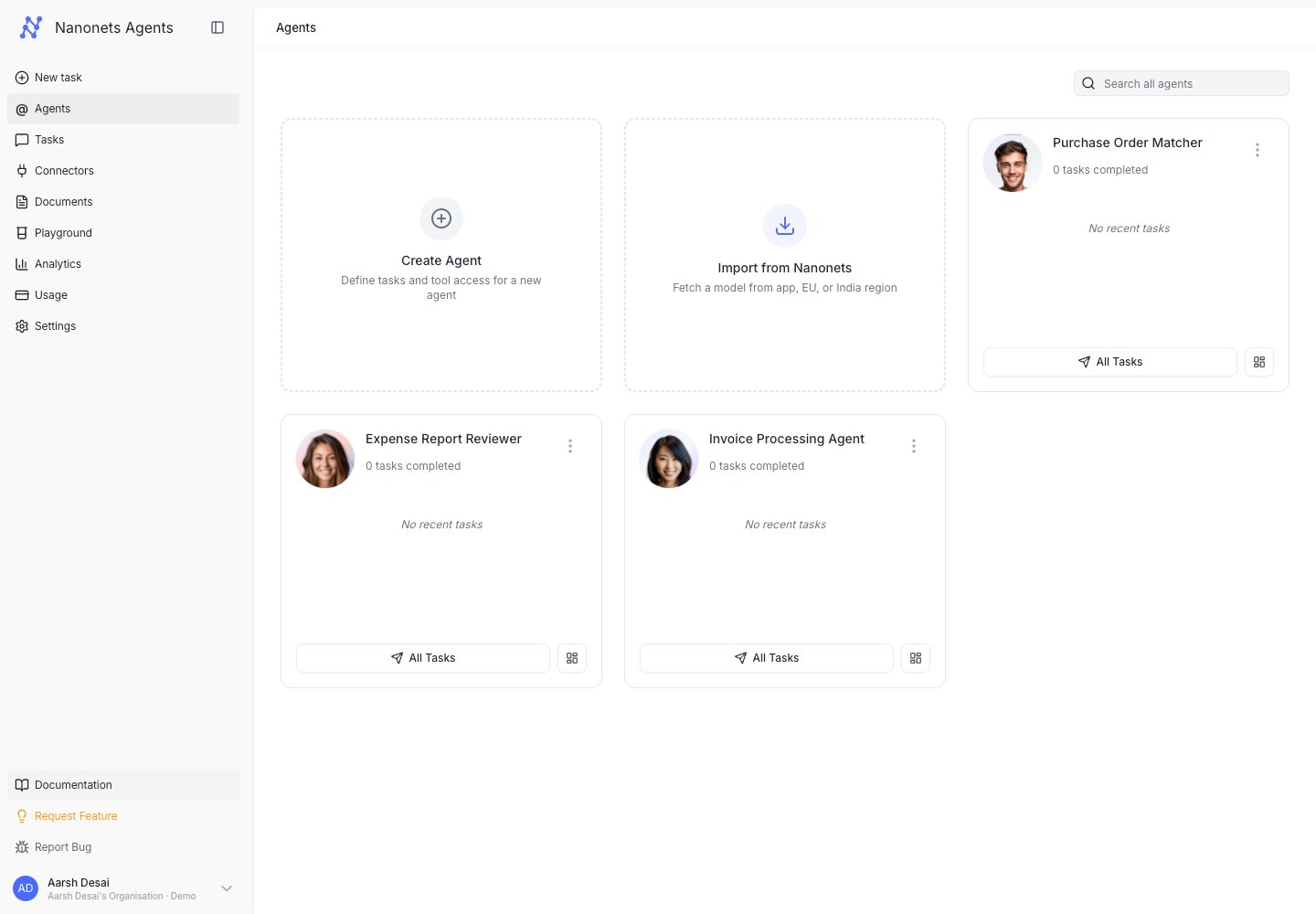
The sidebar profile menu lets you switch between the organizations and workspaces you can access.
Manage workspaces
Admins can manage workspaces in Settings → Workspaces. They can create workspaces, view members, add users, assign roles, and remove access.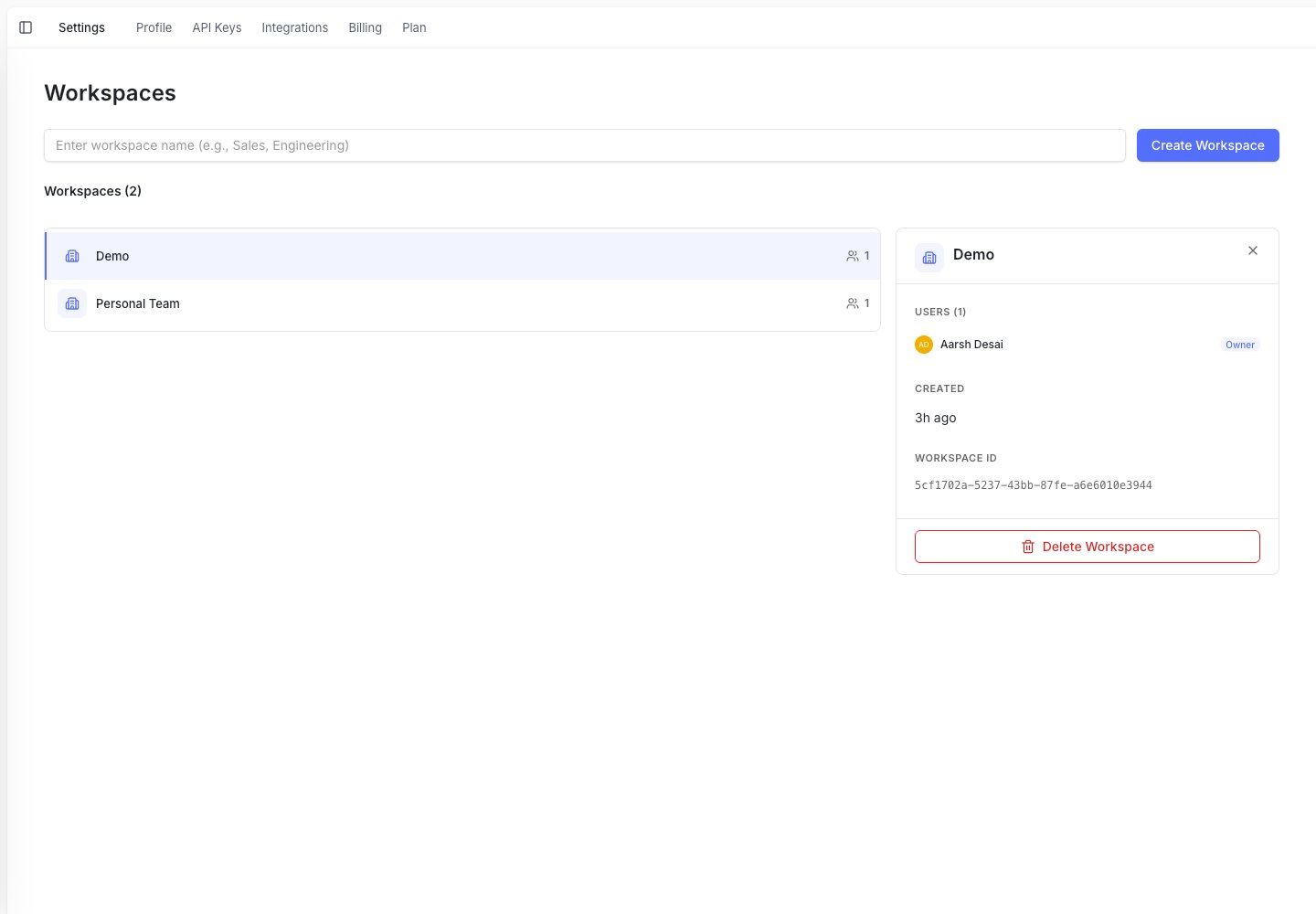
Settings → Workspaces: create workspaces, view members and their roles, and manage access.
What lives where
Roles and access
Roles control what people can see and do. Common examples:- A workspace admin can manage agents, users, and settings in a workspace.
- A workspace member can run and review work in that workspace.
- An organization admin can manage company-level users and workspaces.
Access is workspace-based. A user may have access to one workspace but not another.