

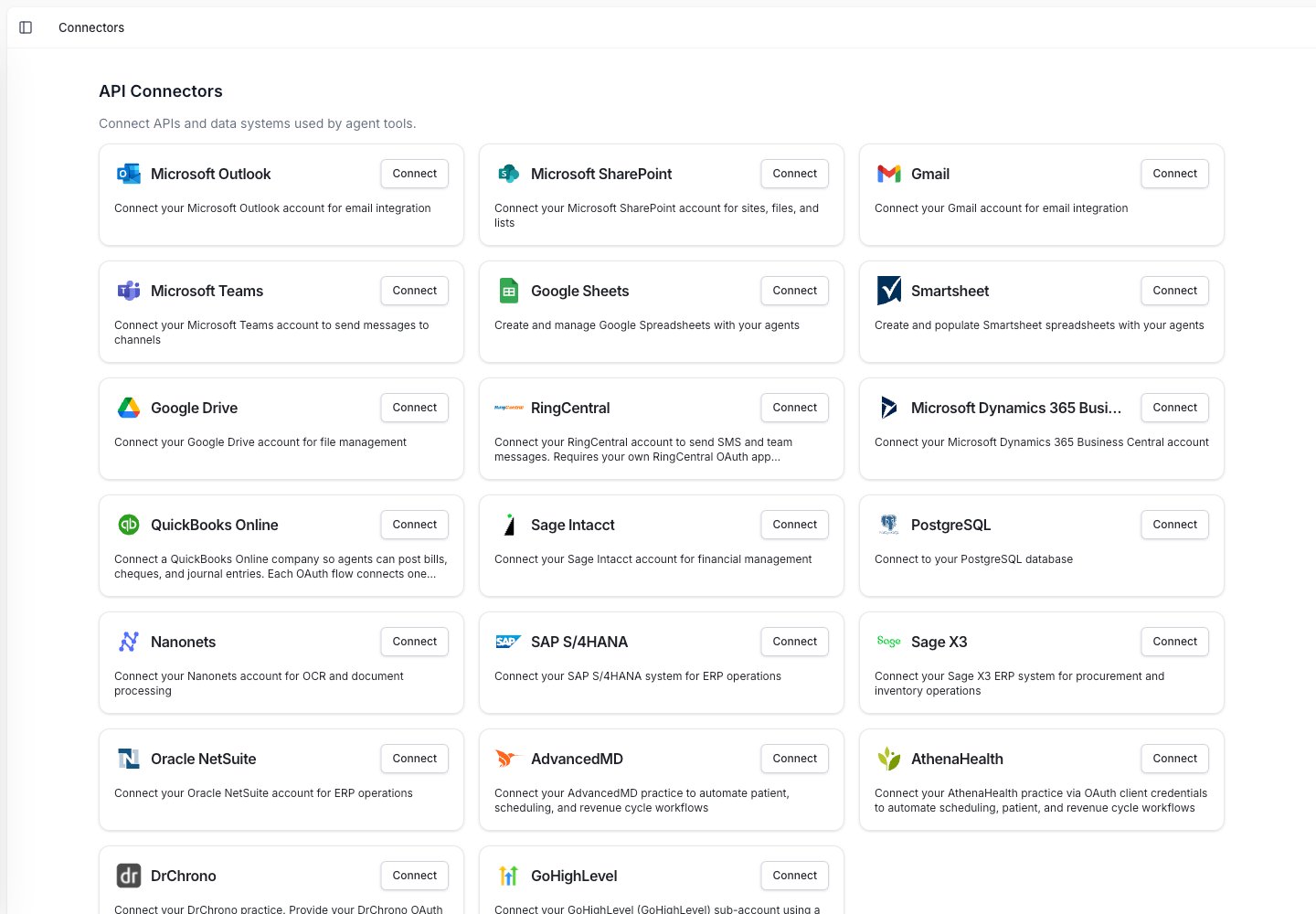
The Connectors page lists the apps you can connect: email, spreadsheets, storage, messaging, and business systems.
What you can connect
Common connection types include:- Email: Gmail and Microsoft Outlook.
- Spreadsheets and storage: Google Sheets and Google Drive.
- Messaging: Slack, Microsoft Teams, and RingCentral.
- Business systems: SAP, NetSuite, Microsoft Dynamics, Sage Intacct, and Sage X3.
- Databases: PostgreSQL.
- Healthcare and CRM systems: AdvancedMD, AthenaHealth, DrChrono, GoHighLevel, and more.
- Team tools: Linear, HubSpot, Notion, Metabase, Gong, and other connected apps.
Connect an app
1
Open Connectors
Go to Connectors from the sidebar.
2
Choose the app
Find the app you want the agent to use.
3
Connect your account
Some apps ask you to sign in. Others ask for account details from your admin.
4
Add it to an agent
Add the related tool to your agent, such as Gmail, Google Sheets, or SAP.
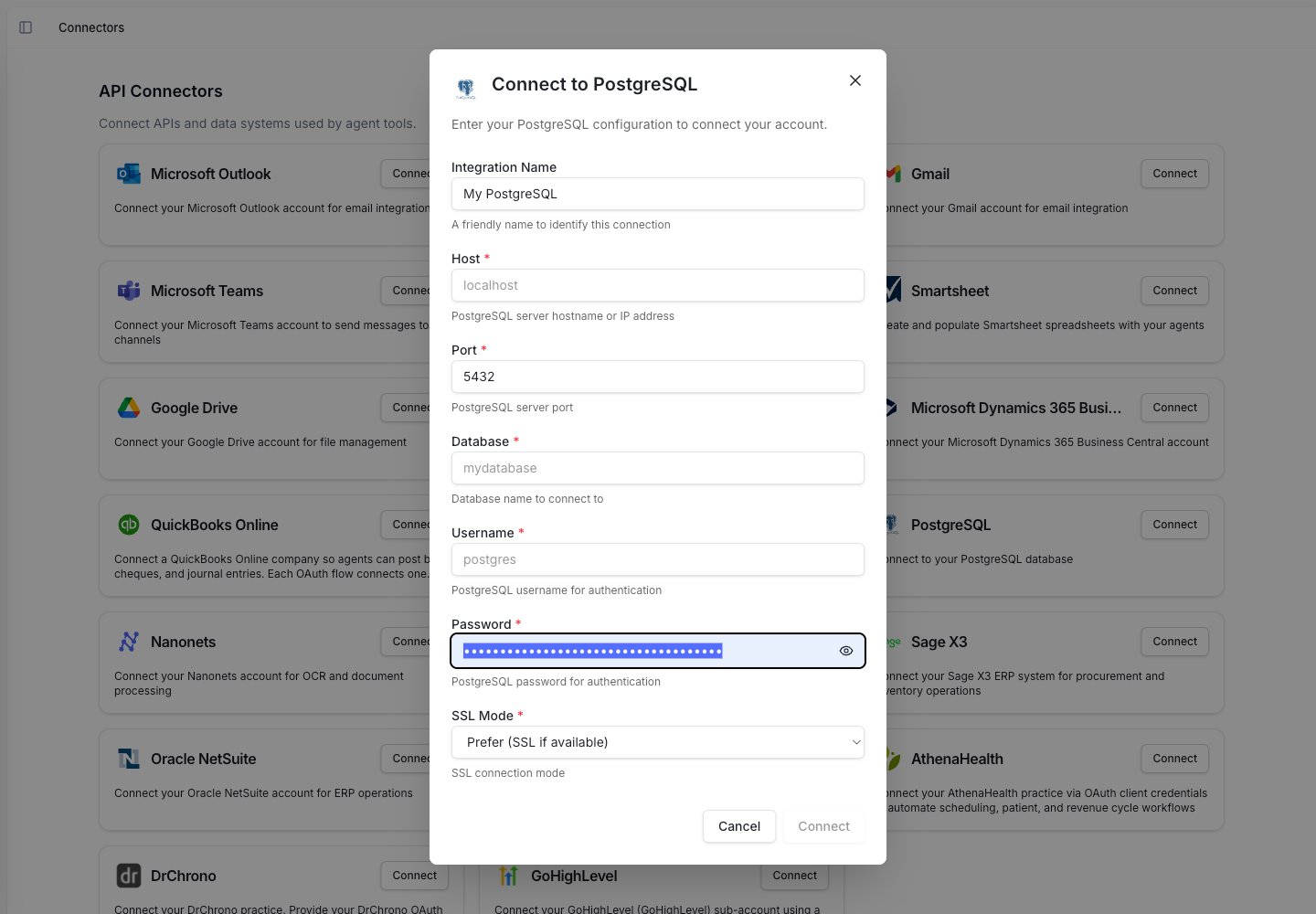
A connector setup window, here for PostgreSQL, asking for connection details. Some apps use sign-in instead.
Connections belong to a workspace
Each connection is tied to the workspace you are using. If your company has separate workspaces for Finance and Operations, each workspace can have its own connected apps.How agents use integrations
Connecting an app gives Nanonets permission to use it. The agent still needs the right tool added to its setup. For example:- To send Gmail messages, connect Gmail and add the Gmail tool.
- To update Google Sheets, connect Google Sheets and add the Google Sheets tool.
- To create ERP records, connect the ERP and add the related ERP tool.
Use integrations with triggers
Integrations can also start tasks. Examples:- Run an invoice agent when a new email arrives.
- Run a report agent on a schedule.
- Run a workflow when a connected system sends an update.