

Open your notifications
Click the bell, near your profile at the bottom of the sidebar. A red badge on the bell shows how many unread notifications you have. The badge updates on its own while you work.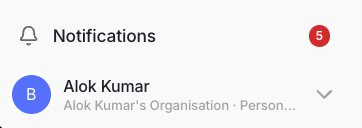
The notifications bell sits above your profile in the sidebar, with a badge for unread notifications.
- Unread — notifications you haven’t opened yet.
- Earlier — notifications you’ve already read.
Open a mention
Click a notification to go straight to it. The task opens with the comments panel showing, and the exact comment you were mentioned in is highlighted. Opening a notification marks it as read. If the mention is in a different workspace, you’ll be asked to switch workspaces first. Confirm to switch and open the task, or cancel to leave it for later.Mark as read
You can clear notifications in a couple of ways:- Open a notification — it’s marked as read automatically.
- Click Mark all read to clear every unread notification at once.
What creates a notification
Right now, notifications are created when a teammate @mentions you in a comment on a task. To mention someone, type@ in a comment and pick their name. See Comments for how mentions work.