

Open the comments panel
Open a task, then click Comments in the top bar. The comments panel opens on the right, next to the task feed. It shows every comment on the task, oldest to newest, with the newest in view.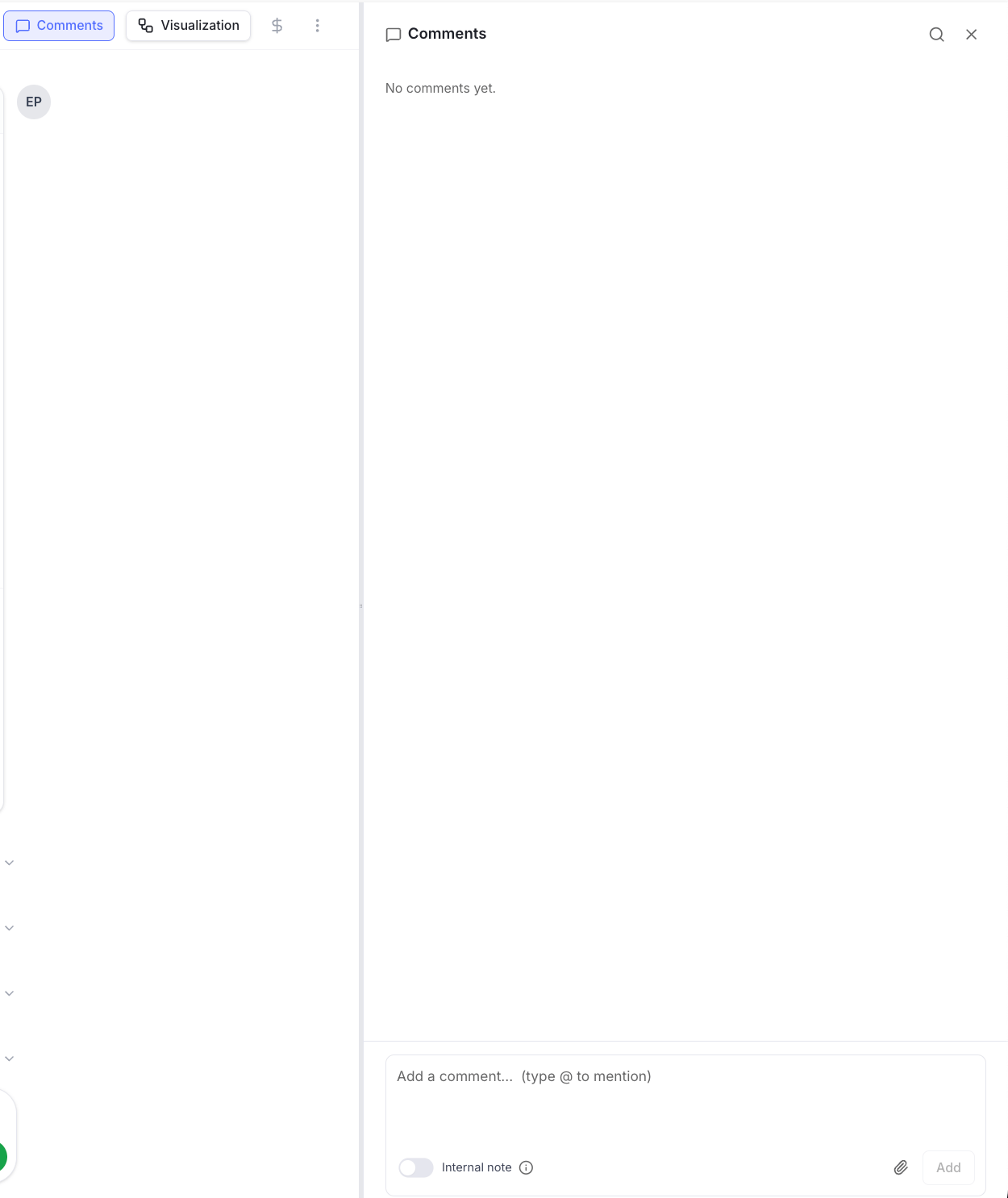
The comments panel opens beside the task feed. Type a comment at the bottom, toggle Internal note, or attach a file.
Add a comment
- Open the comments panel.
- Type your message in the box at the bottom.
- Press Enter to post, or Shift + Enter to start a new line.
Comment on a specific field or cell
You can attach a comment to a single extracted field or a single table cell, so everyone knows exactly what you’re referring to.- Hover over a field or a table cell in the task result.
- Click the comment icon that appears. Its tooltip names the field — Click to add a comment on it, or Click to view comments on it once a thread exists.
- Type your comment and post it.
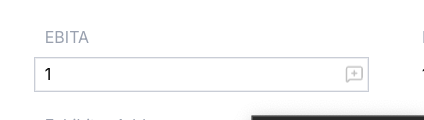
A comment badge on a field. Click it to read the thread or add a reply.
Comment on a step
You can also comment on a whole step in the task feed, such as an extraction or a lookup.- Hover over the step and open its three-dots (⋯) menu.
- Choose Add comment.
- Type your comment and post it.
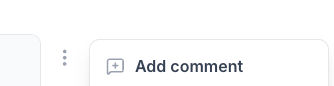
Open a step's three-dots menu and choose Add comment to comment on that step.
Mention a teammate
Type@ and start typing a name to mention a teammate.
Pick them from the list that appears. Mentioned teammates are notified so they can jump straight to the comment.
Use mentions when you need a specific person to look at something or answer a question.
Keep a note internal
Some notes are meant for your team only, not for everyone on the task. Turn on Internal note below the comment box before you post.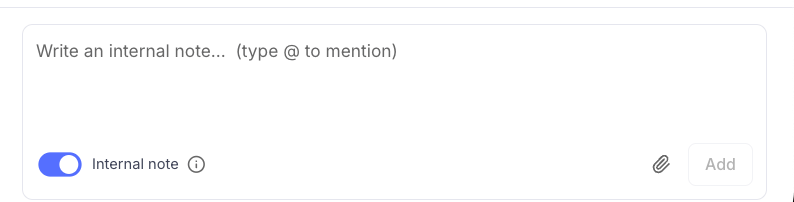
Turn on Internal note to keep a comment visible only to teammates with internal-note access.
Attach a file
You can attach an image or a PDF to a comment, for example a screenshot or a reference document.- Click the attachment icon in the comment box.
- Choose an image or PDF (up to 25 MB each).
- Post the comment.