

- Correct a result: fix a wrong value or output on a task, and the fix becomes a rule.
- Give an instruction in the task chat: tell the agent what to do, and it saves the instruction as a rule.
- Add a rule yourself: write one directly in the Learning tab.
What a rule can capture
A rule is anything you want the agent to remember and apply next time: a preference, a correction, a format, or a guardrail. For example:- “Read the invoice date as DD/MM/YYYY for Northwind Traders.” (a vendor-specific format)
- “Ask for approval before any payment above $10,000.” (a guardrail for every task)
- “Match invoices from TechSupply Co. to vendor ID 10482.” (a lookup to reuse)
- “The customer’s PO number is printed near the shipping address.” (where to find a field)
Correct a result
The fastest way to teach the agent is to fix a value on a real result.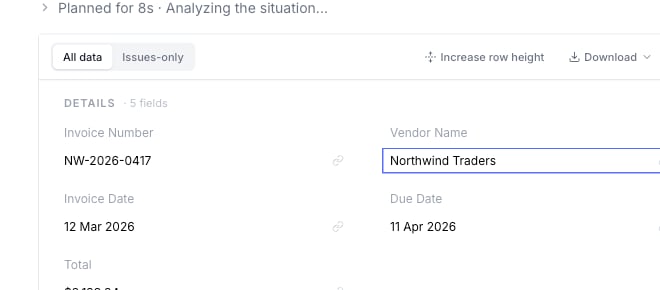
Correct a result by editing a field directly on the extracted data. Here, the Vendor Name value is open for editing.
1
Find the wrong value
Open a task result and locate the field the agent got wrong.
2
Edit it to the correct value
Change it to what it should have been, and save.
3
Add a short note on why
Explain what should happen next time. For example, “Use the due date from the payment terms, not the invoice date.”
- “Use the due date from the payment terms section, not the invoice date.”
- “This vendor should be matched to vendor ID 10482.”
- “If the tax field is blank, leave it blank. Do not copy the shipping amount.”
Give chat instructions
You can also teach the agent by telling it what to do in the task chat. To make sure your instruction becomes a reliable rule, write it as a durable preference, not a one-off ask.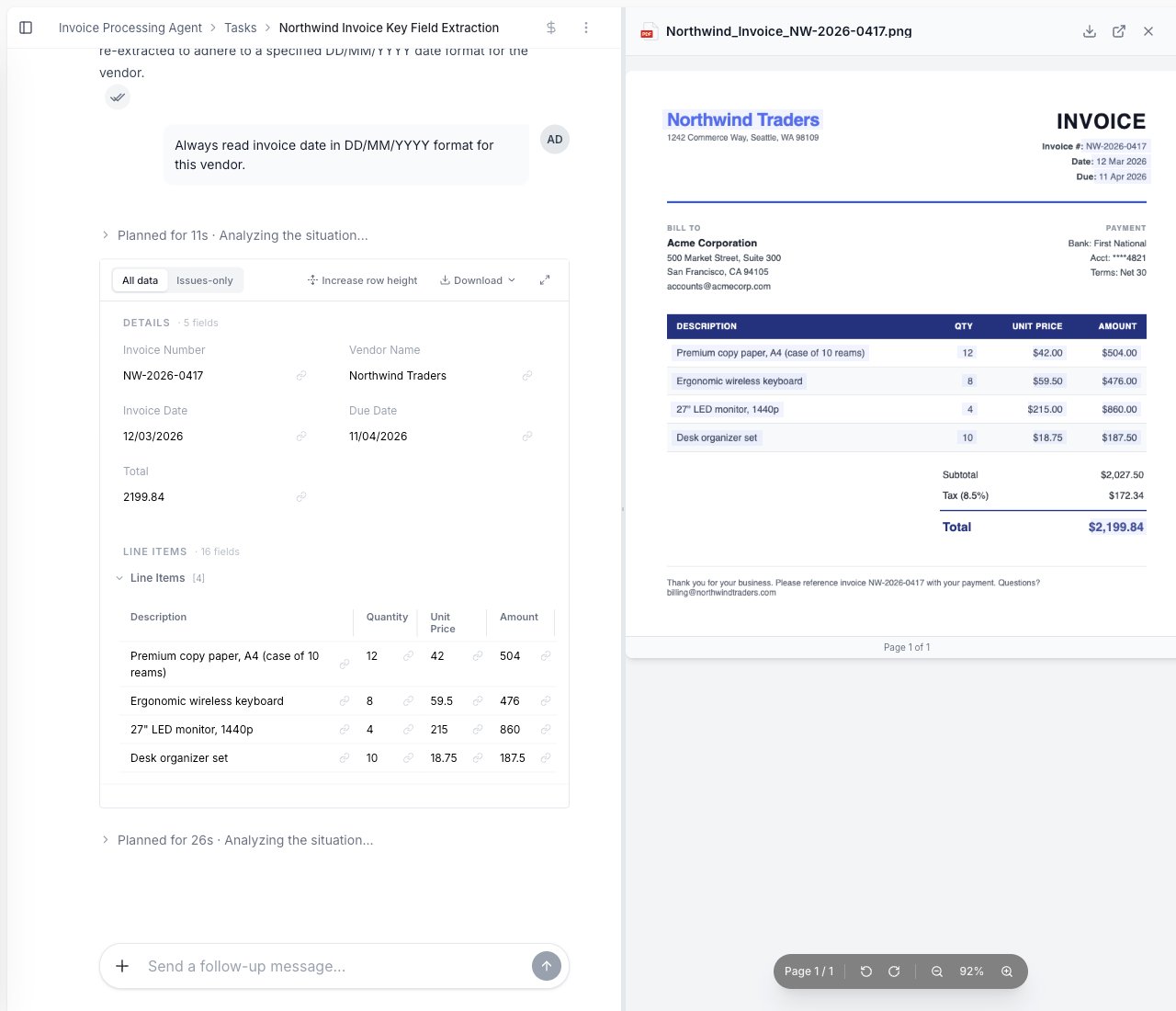
Type an instruction in the task chat, like 'Always read invoice date in DD/MM/YYYY format for this vendor.' The agent applies it and saves it as a draft rule scoped to that vendor.
Tips for instructions that turn into good memory:
- State the condition and the action. “When X, do Y” is easier to learn than “do Y”.
- Say what it applies to. Name the vendor, customer, or document type, or say it applies to all of them.
- One rule per instruction. Don’t bundle several changes into one message.
- Use durable words like always, whenever, or for this vendor, not this time.
Add a rule directly
You can also write a rule yourself, without waiting for a correction.1
Open the agent
Go to the agent you want to improve.
2
Open Learning
Select the Learning tab and choose Add rule.
3
Write the rule
Write it in clear business language. Keep it specific, and name what it applies to.
Keep rules specific
Specific rules are easier for the agent to follow.Review and approve rules
However a rule is created (a correction, a chat instruction, or one you write yourself), it starts as a draft in the Learning tab. Drafts are not used until you approve them.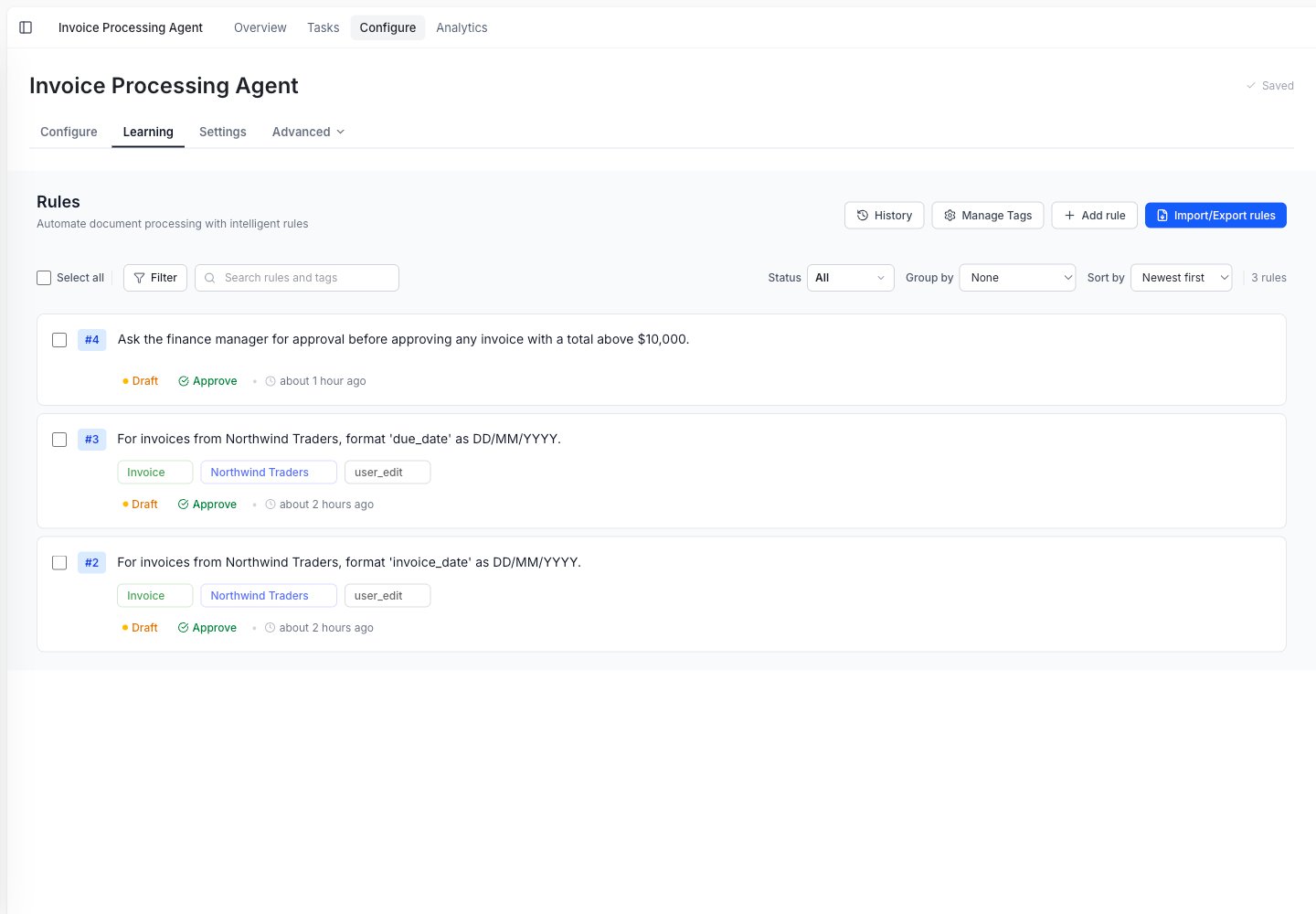
The Learning tab collects everything the agent has learned. Each rule shows the tags it is scoped to and its status.

A new rule starts as a Draft. Review it, then Approve it so it applies to future tasks.
- Your approval limits change.
- Your team changes how data should be formatted.
- A vendor changes its document layout.
- The agent starts applying an old rule in the wrong place.